
If you’re self-hosting n8n, nothing is versioned by default.
New to n8n? Start with the complete n8n beginner guide first – this tutorial assumes you already have an instance running.
What if delete things accidentally – It’s gone. There’s no undo, no history or the rollback.
Github fixes this. Every backup is a commit with a timestamp, which means you get a full version history and can restore any workflow to any point in time. It’s free for private repos and takes about 15 minutes to set up.
This guide walks you through building an automated backup workflow that runs on a schedule, pulls all your n8n workflow via the API, and commits each one as a JSON file to your GitHub repo.
Why GitHub For Backup
GitHub is the best default choice for most self-hosted users.
Every backup is a commit with timestamp. You get full version history. You can restore any workflow to any point in time. And it’s free for private repos.
What you need,
- A self-hosted n8n instance with API access enabled
- A GitHub account
- A new private GitHub repository created for backups (public repos expose your workflow logic)
- A GitHub Personal Access Token with
reposcope
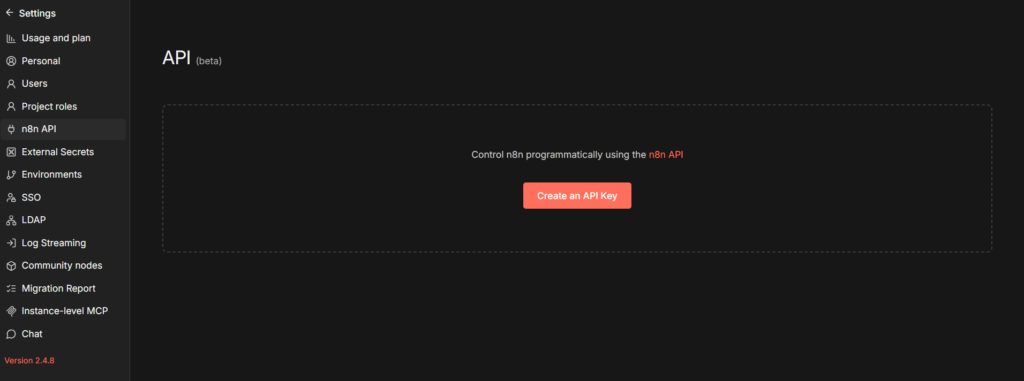
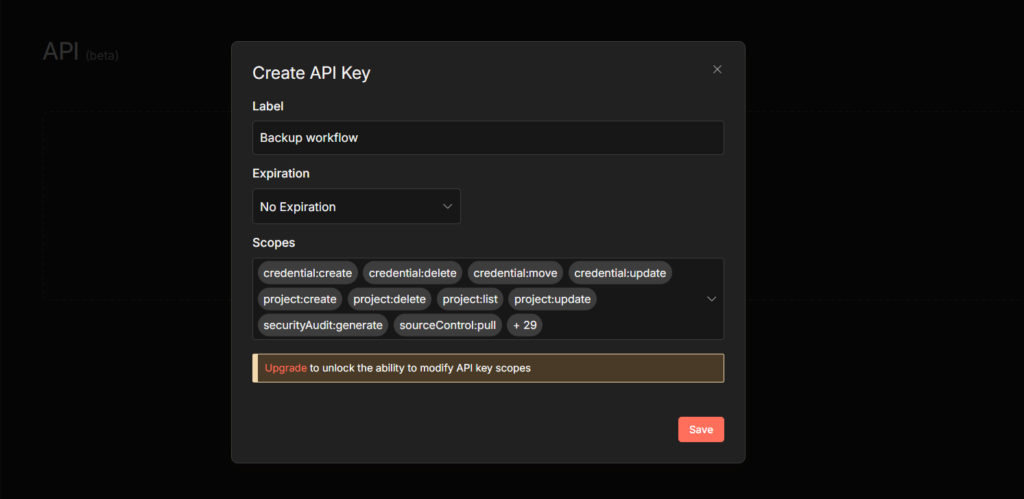
To create your n8n API Key: In n8n, go to Settings > API > Create API Key (Copy this and keep it safe)
To generate GitHub token
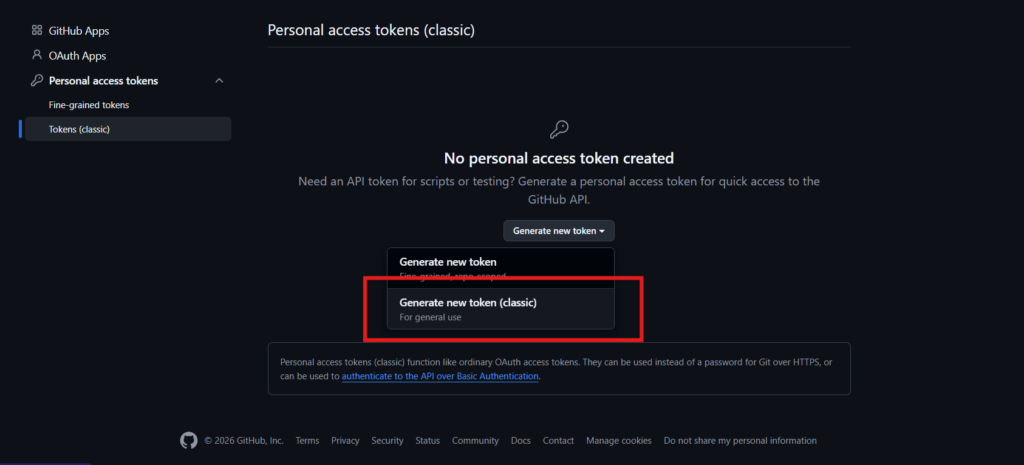
- Go to GitHub > Settings > Developer Settings
- Personal Access Token > Tokens (classic) > Generate new token
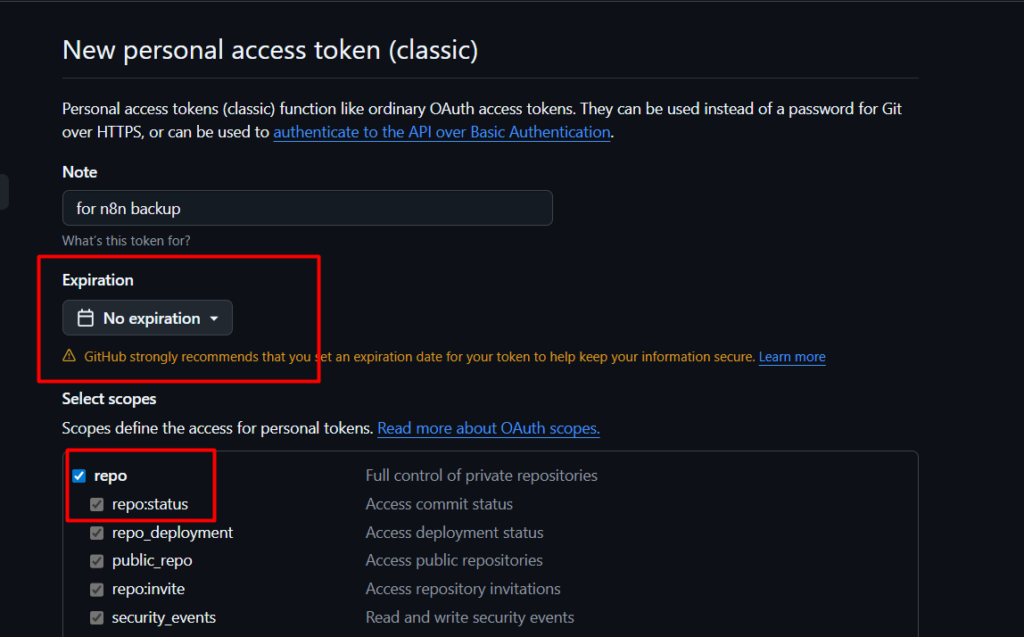
- Check the
reposcope. Copy the token immediately – You won’t see it again. same goes for n8n as well.
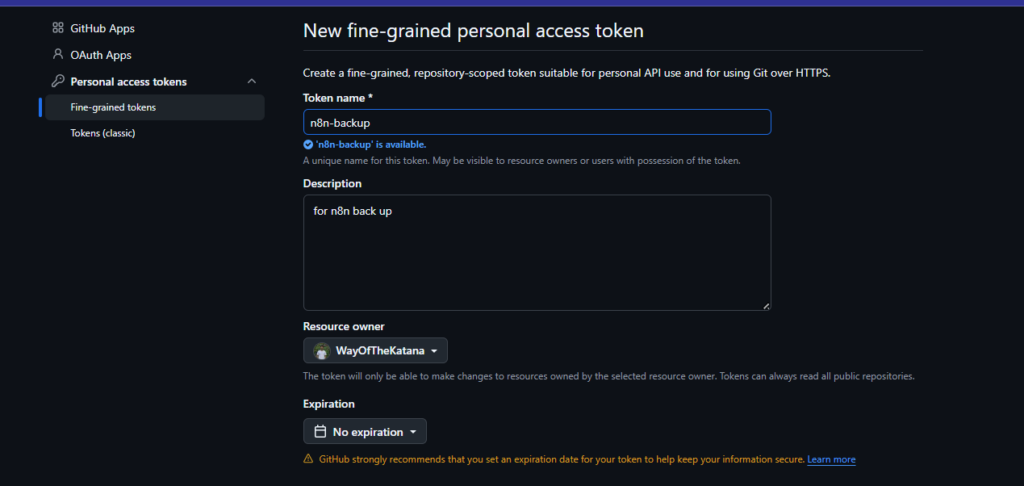
Building the Backup Workflow
Step 1: Add a Scheduled trigger or Manual trigger
Since this is a tutorial, so I go with the manual trigger, for production, I’d go with Scheduled trigger. Set it run daily midnight or whenever your instance is least active. You can adjust the frequency later.
Step 2: Fetch All Workflows
Add a n8n node. Set resources to workflow and operation to Get many. Connect your n8n API credentials here.
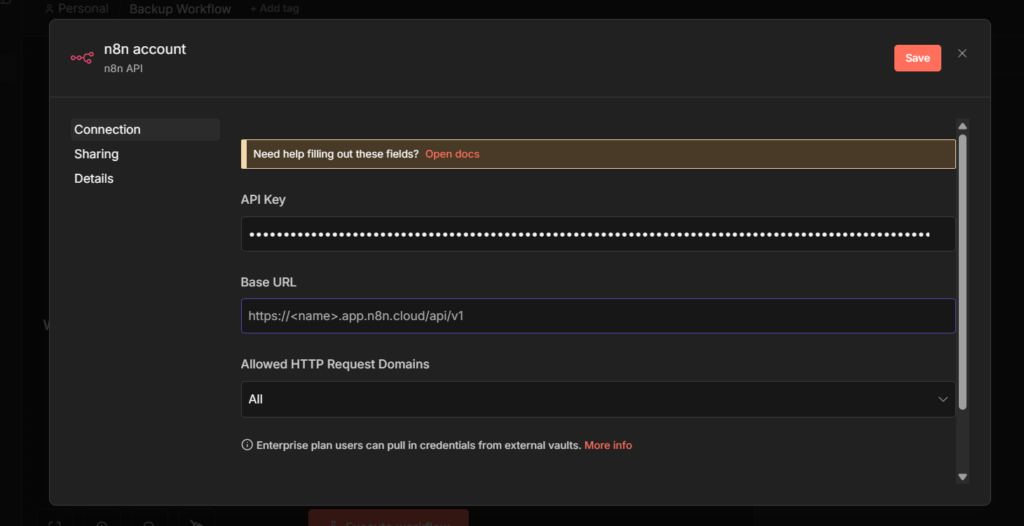
In the base URL add your name or else if your using self-hosted locally then add this http://localhost:5678/api/v1 – If it’s self-hosted on a VPS then it should be like this http://YOUR_VPS_IP:5678/api/v1
Basically, In whatever URL you type in your browser to open n8n, just add /api/v1 at the end. That’s your base URL.
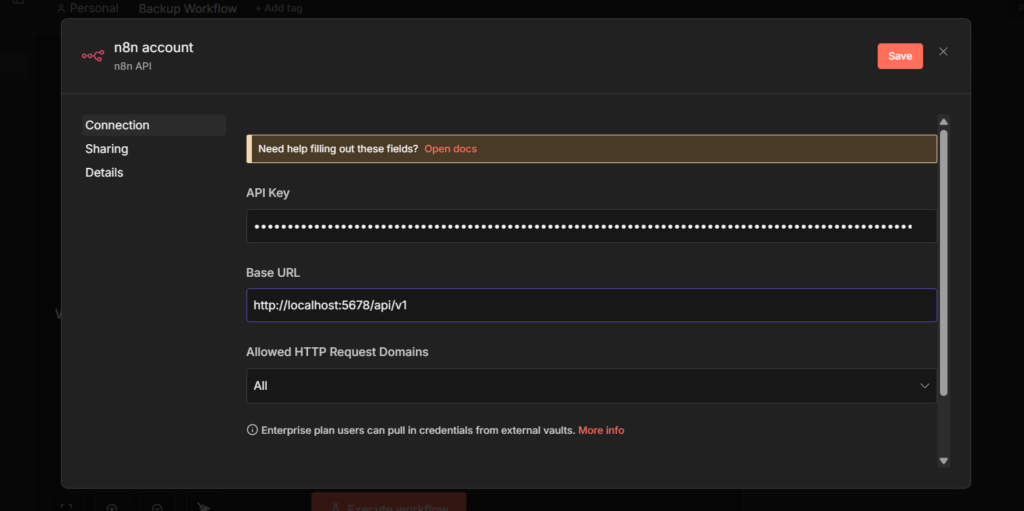
This node hits your instance’s REST API and returns every workflow, Active, Inactive, literally all of them. Nothing gets missed.
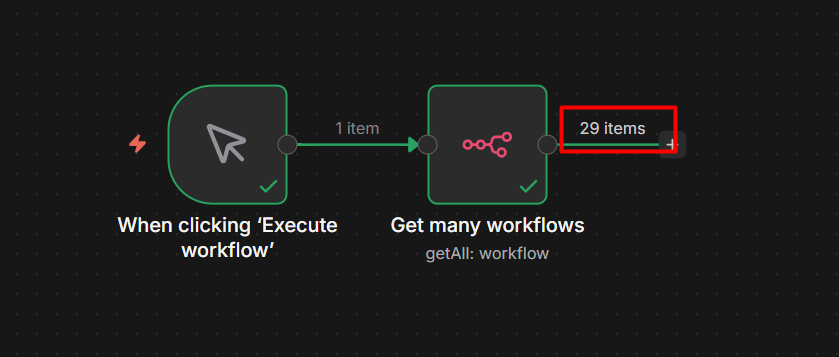
I retrieved 29 items, which means connection is working.
Step 3: Loop Over Each Workflow
Add a Loop Over Items node. This processes one workflow at a time, which matters because you’ll be making individual GitHub API calls per workflow (If you’re new to loops in n8n, here’s how the loop node works)
Step 4: Prepare the File Content
Add a Code node. You need to convert the workflow JSON to base64, because the GitHub API requires base-64 encoded content when creating or updating files.
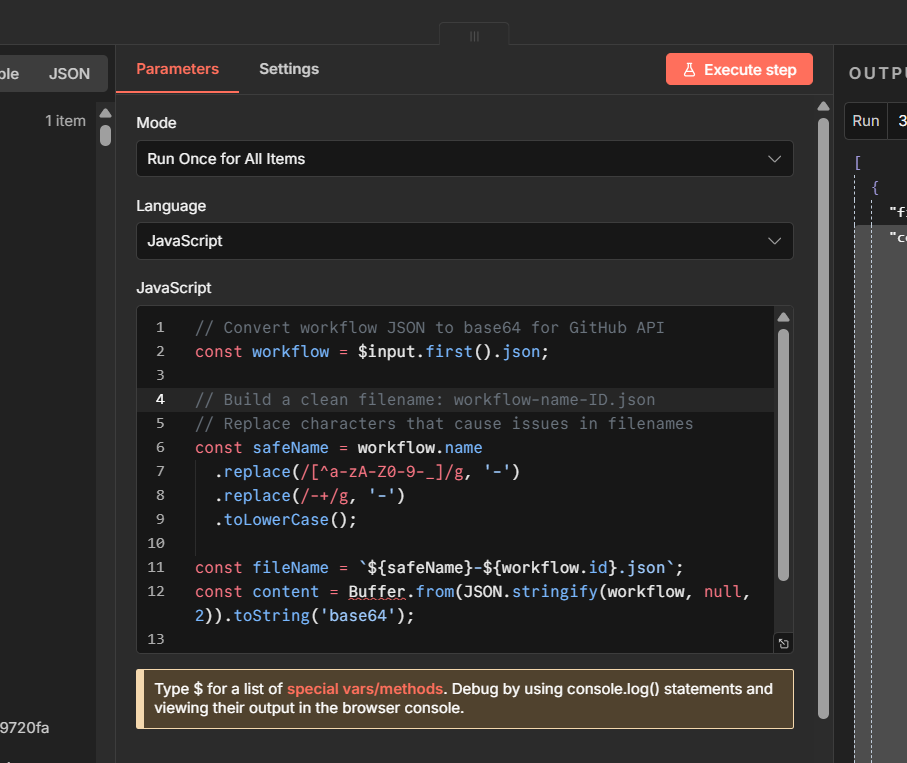
// Convert workflow JSON to base64 for GitHub API
const workflow = $input.first().json;

// Build a clean filename: workflow-name-ID.json
// Replace characters that cause issues in filenames
const safeName = workflow.name
  .replace(/[^a-zA-Z0-9-_]/g, '-')
  .replace(/-+/g, '-')
  .toLowerCase();

const fileName = `${safeName}-${workflow.id}.json`;
const content = Buffer.from(JSON.stringify(workflow, null, 2)).toString('base64');

return [{ json: { fileName, content, workflowId: workflow.id } }];
This output two things you’ll need in the next steps fileName and content
Step 5: Check if the File Already Exists on GitHub
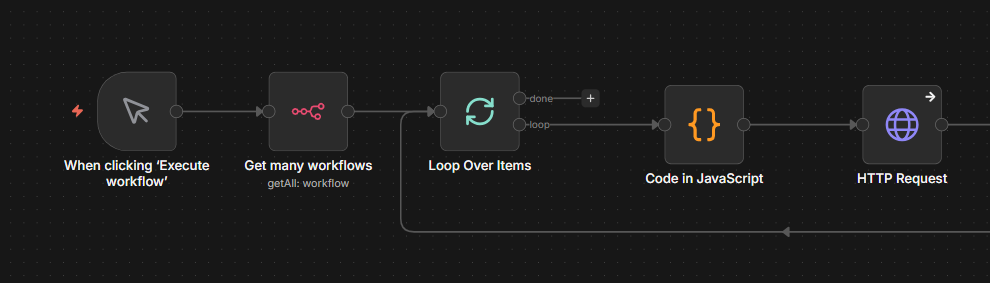
Add an HTTP request node with these settings
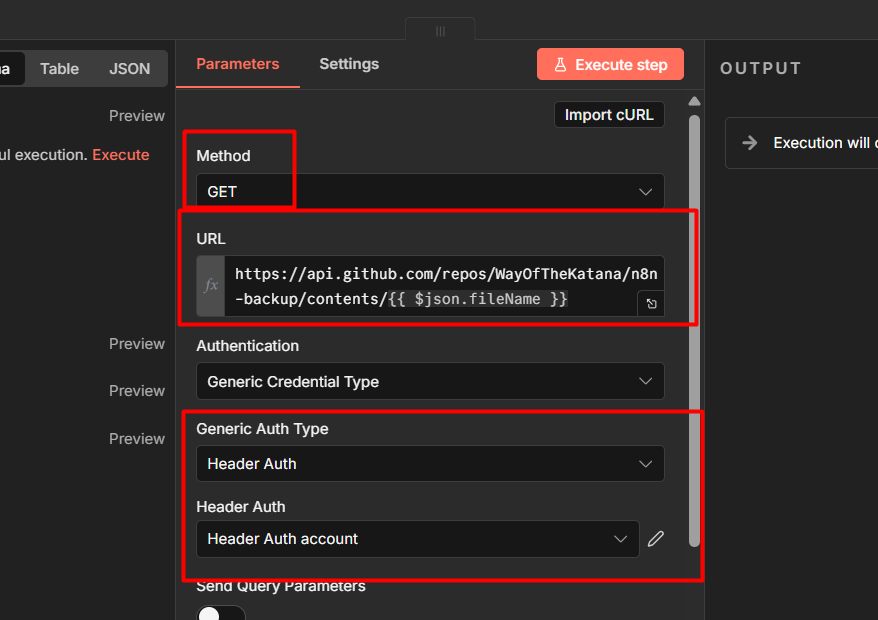
- Method:
Get - URL
https://api.github.com/repos/YOUR_USERNAME/YOUR_REPO/contents/{{ $json.fileName }}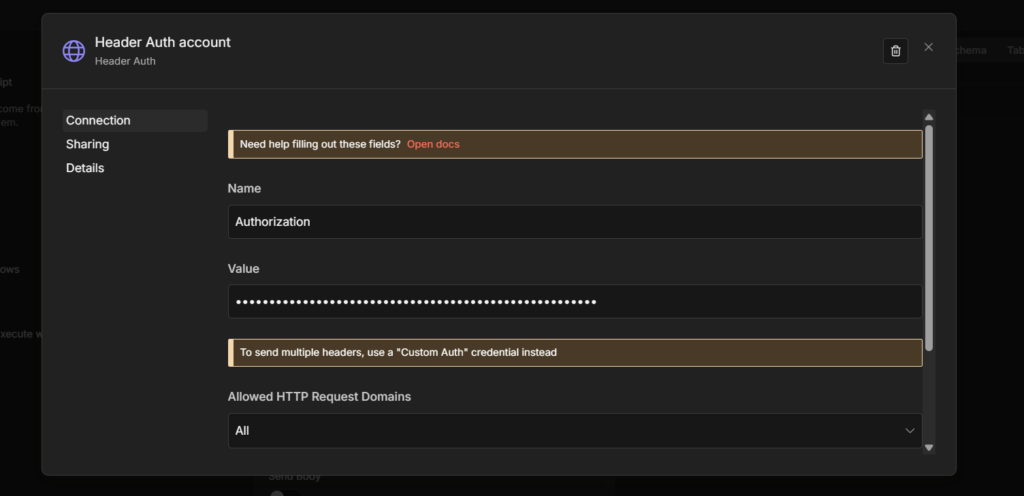
- Authentication: Header Auth > Name:
Authorization, Value:Bearer YOUR_GITHUB_TOKEN - Go to setting tab > On Error > Continue
A 404 response here means the file doesn’t exist yet – that’s expected on first run. Setting on Error to Continue means the workflow keeps going instead of stopping.
Step 6: Create or Update a File
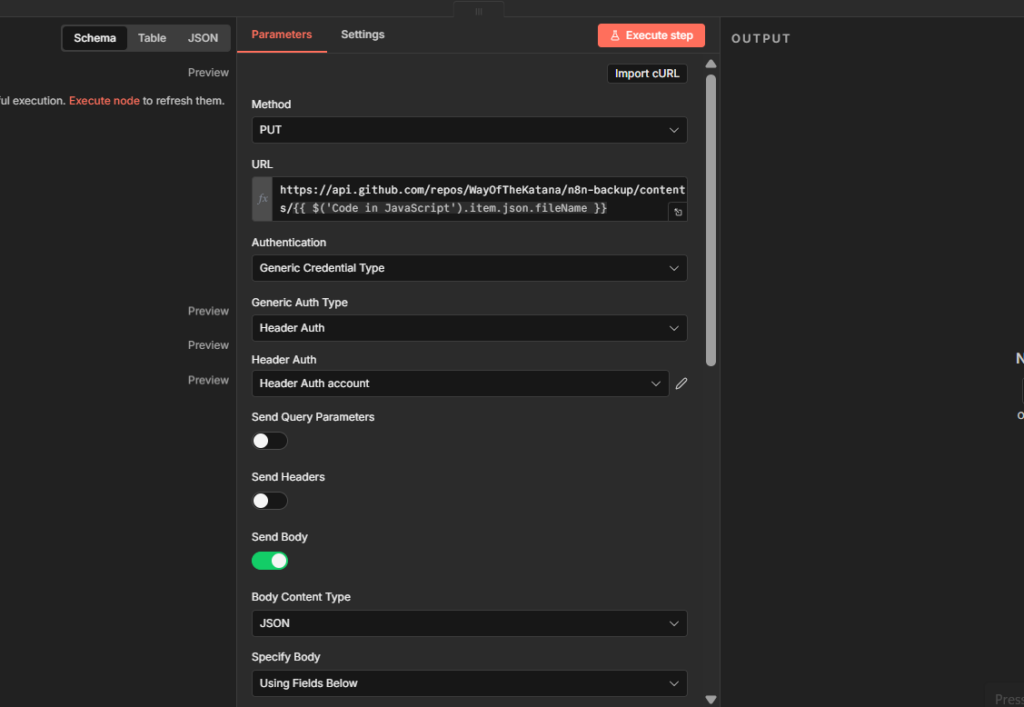
Add another HTTP request node next to the previous one.
- Method:
Put - URL:
https://api.github.com/repos/YOUR_USERNAME/YOUR_REPO/contents/{{ $('Code in JavaScript').item.json.fileName }}- Authentication: same Header Auth Credentials as Step 5, no change.
- Body Content Type: JSON
- Specify Body: Using Fields below
Add these fields individually.
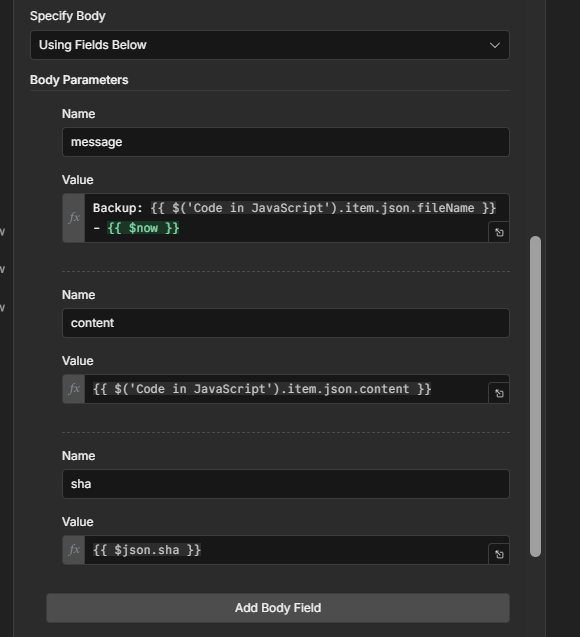
- name:
message - value:
Backup: {{ $('Code in JavaScript').item.json.fileName }} - {{ $now }}- name:
content - value
{{ $('Code in JavaScript').item.json.content }}- name:
sha - value:
{{ $json.sha }}
The sha field handles both cases automatically. When the file already exists, the previous GET request returns the sha and it gets passed here. When the file is new, the GET returns nothing and $json.sha is simply empty – which is exactly what GitHub expects for file creation. No IF node needed eventually, no extra complexity.
Step 7: Publish the Workflow
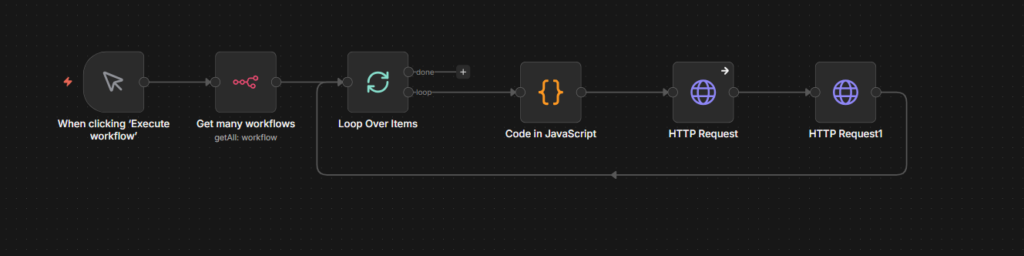
Publish the workflow. From now on, every day your n8n instance will back itself up to your GitHub repo – one JSON file per workflow, with a full commit history you can restore from at any point.
My Final Thoughts
The backup workflow itself is straightforward once it’s running – but there are two things worth keeping in mind.
First, this protect you from workflow-level mistakes. Accidental edits, deletions, broken changes – covered.
It doesn’t protect against a full server or database failure. If you’re self-hosting, a database-level backup of your SQLite or Postgres instance is a separate thing worth setting up alongside this.
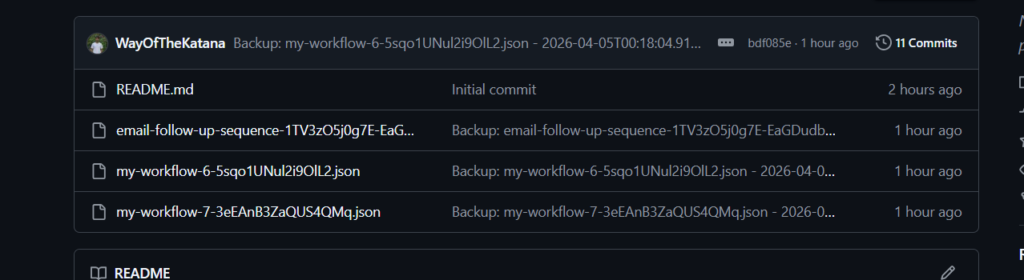
Second, check your GitHub repo after the first run to confirm files are actually there.
A workflow that runs without errors isn’t the same as a workflow that’s actually backing up correctly. Verify once, then trust the schedule.
That’s it. One workflow, runs daily, commits everything to GitHub. You’ll forget it exists until the day you actually need it – which is exactly how it should work.