
An AI agent in n8n is a workflow that can think through a task, decide what to do, and act without defining every steps in advance.
AI agents are the final step in my complete n8n beginner guide — if you haven’t covered the basics yet, start there before diving in here
A normal n8n workflow follows a fixed path. If X happens, do Y. If Z happens, do W. Every branch has to be anticipated and built by you. That works well for structured, predictable tasks, syncing rows from a spreadsheet, sending a confirmational email, posting a Slack message.
But a lot of real work isn’t structured. Incoming support messages don’t fit neat categories.
Research tasks depend on what you find along the way. Lead qualification depends on context that’s different for every prospect.
AI agents handle that kind of work. You give the agent a goal and a set of tools, and it figures out the steps.
It reads the input, decides which tool to use, uses it, reads the result, and keep going until it has a complete answer.
Concretely, an n8n AI agent can,
- Answer questions by searching a knowledge base before responding
- Triage incoming messages and decide whether to reply, escalate or log them
- Research a topic by querying APIs and summarizing the findings
- Enrich CRM records by pulling data from external services and writing it back
- Draft content, check it against rules you define, and revise until it passes
This post walks you through building your first one from scratch. By the end you’ll have a working agent, understand how memory actually works (and why Simple Memory burn you in production), and know about two features from early 2026 that most tutorials haven’t caught up to yet.
Before You Start
This tutorial assumes you have n8n running and atleast one AI API credentials ready. If you’re not setup yet, here’s what to sort first.
An n8n instance. You have two options
- n8n cloud – the fastest way to get started. No server setup, no maintenance Start with n8n cloud (recommended if you just want to build)
- Self-hosted – more control, lower long-term cost. Self-hosted vs n8n cloud
A language model API key. This tutorial uses Gemini (free tier available via Google AI Studio). You can also use Anthropic Claude or ChatGPT. Well, all work the same way. (However, we have listed the steps below that you could take to obtain an API key)
Basic n8n familiarity. You should know what a node is and how to connect them. If you haven’t built anything in n8n yet, start with Your First Workflow in n8n – It takes about just 10 minutes or less.
Let’s discuss a little bit about what is AI agent, and what makes AI agent feels more powerful than just a n8n workflow.
What Makes an AI Agent Different From a Regular n8n Workflow
A normal n8n workflow is like a recipe. Every step is predefined. If email contains “refund” > send template A. If it contains “Invoice” > send template B. The moment something lands outside those rules, the workflow either fails or does the wrong thing.
An AI agent understand a goal and figures out the step itself.
The same support inbox handled by an agent looks like this.
- Read the message
- Understand the actual issue
- Check the customer’s history
- Decide whether to respond directly, look something up or escalate
The agent adapts. You don’t have to anticipate every edge case in advance.
The tradeoff is real though, agents are less predictable than fixed workflows. For anything that needs deterministic, auditable results every time, like payroll processing ,database writes – a standard workflow is still the right tool. Agents shine when the input is unstructured and the right action depends on context.
The 4 Components Every n8n AI Agent Needs
Every AI agent in n8n built from the same four-part structure, regardless of what the agent actually does.
- Trigger – What starts the agent. This could be a Chat Trigger (for conversational agents), a Webhook (for integrating with external systems), a Scheduled Trigger, or even a form submission. The trigger passes the initial input to the agent
- AI Agent node – The orchestration layer. This node receives the input, sends it to your chosen language model, reads the model’s response, decides which tool to call (if any), calls it, checks the results, and loops until it has a complete answer. It’s the brain.
- Sub-nodes – The three types that connect directly to the AI Agent node.
- Chat Model – The actual LLM (OpenAI GPT, Anthropic Claude, Google Gemini, Kimi K2.5, etc)
- Memory – How the agent retains context across messages
- Tools – What the agent can do (Call an API, search the web, run a calculation, query a database)
- Output – Where the results goes. This could be a reply in the chat interface, a Slack message, a row appended to Google Sheets, or anything else n8n’s integration library.
This structure doesn’t change. Whether you’re building a simple Q&A bot or multi-step research agent, these four part are always there.
Building Your First AI Agent (A Support Triage Bot)
I’ll use a support triage agent as the example
- It reads incoming messages.
- Decides whether to answer directly or escalate, and responds.
It’s practical, easy to understand, and shows exactly how the agent make decisions.
Step 1: Add a Chat Trigger
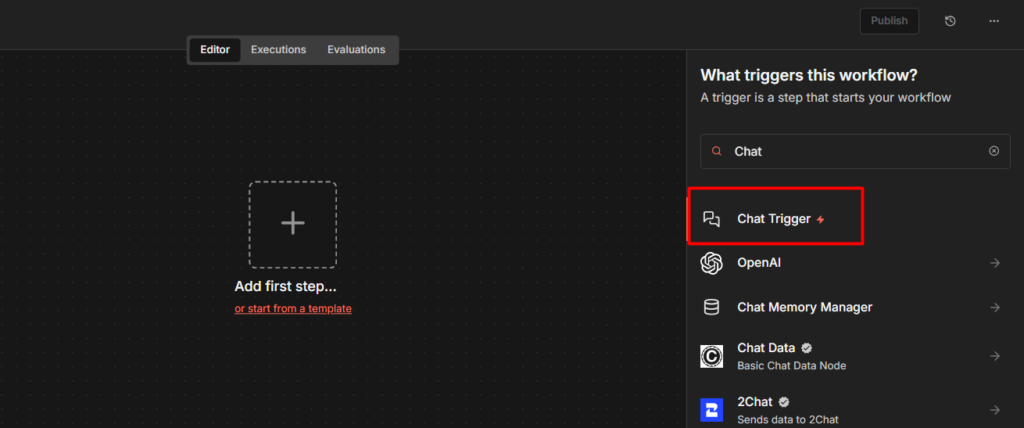
Create a new workflow and add a Chat trigger node. This is the easiest way to start with agents because it gives you built-in chat interface to test with. No external services or webhooks needed while you’re learning the setup.
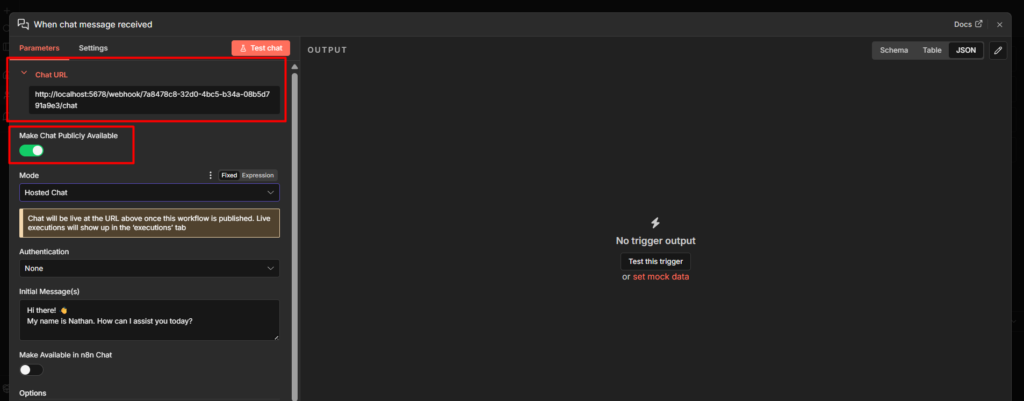
The Chat Trigger creates a simple URL where you can open a chat window and send a test messages directly to your agent.
Step 2: Add the AI Agent Node
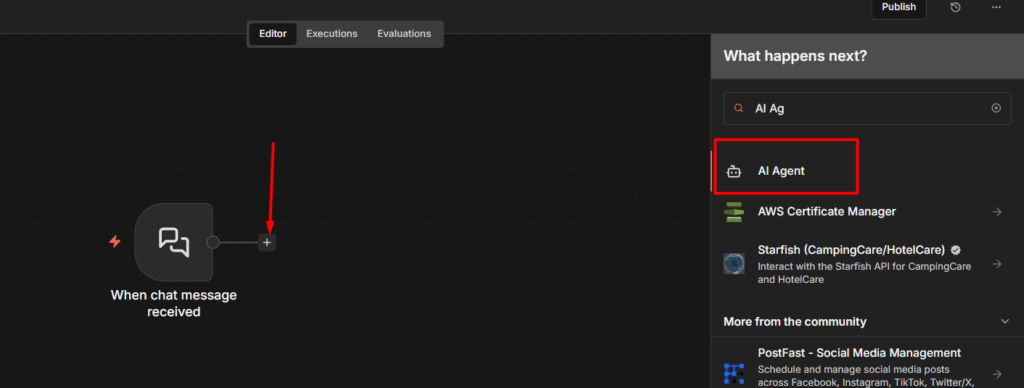
Click the + button after the Chat trigger and search for AI Agent. Add it to the canvas and connect it to your trigger.
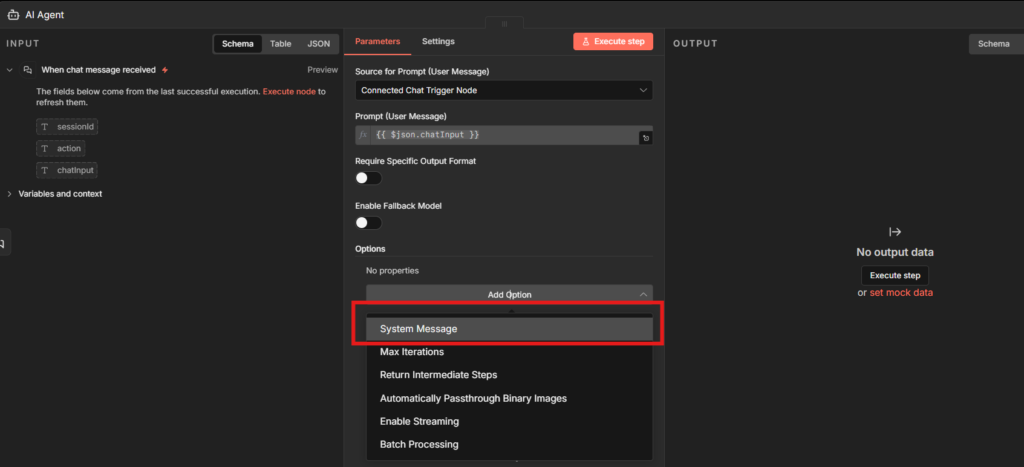
Open the AI Agent node. The most important field here is the System Message. This is where you define who the agent is and what it’s supposed to do.
Here’s a real example for the support triage agent
You are a support agent for a SaaS product. Your job is to:

1. Answer common questions directly if you can (password resets, billing basics, plan information)
2. If the issue requires account-specific information you don't have, let the user know you're escalating to the team
3. Always be concise. Don't pad responses with unnecessary filler.
4. If the user seems frustrated, acknowledge it briefly before answering.

You do NOT have access to account data unless a tool provides it. Don't make up information.
The last line matters. Without explicit instructions about what the agent doesn’t know, it will sometimes hallucinate account details. Tell it what it can and can’t do.
Step 3: Connect a Chat Model
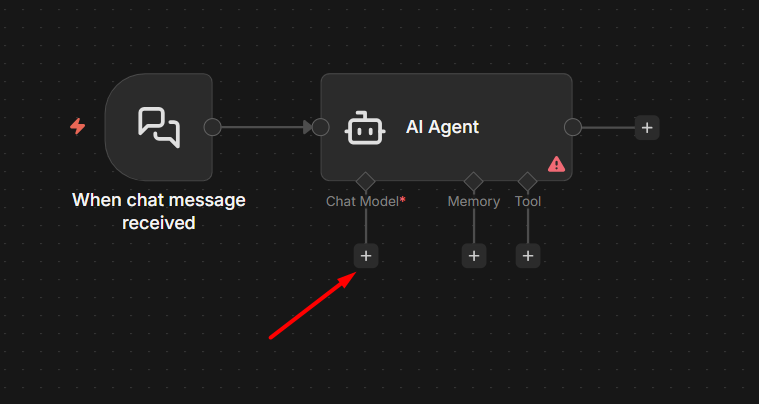
The AI Agent node won’t do anything without a language model. Hover over the bottom of the AI agent node – you’ll see sub-node connector. Click the Chat Model connector and add a model node.
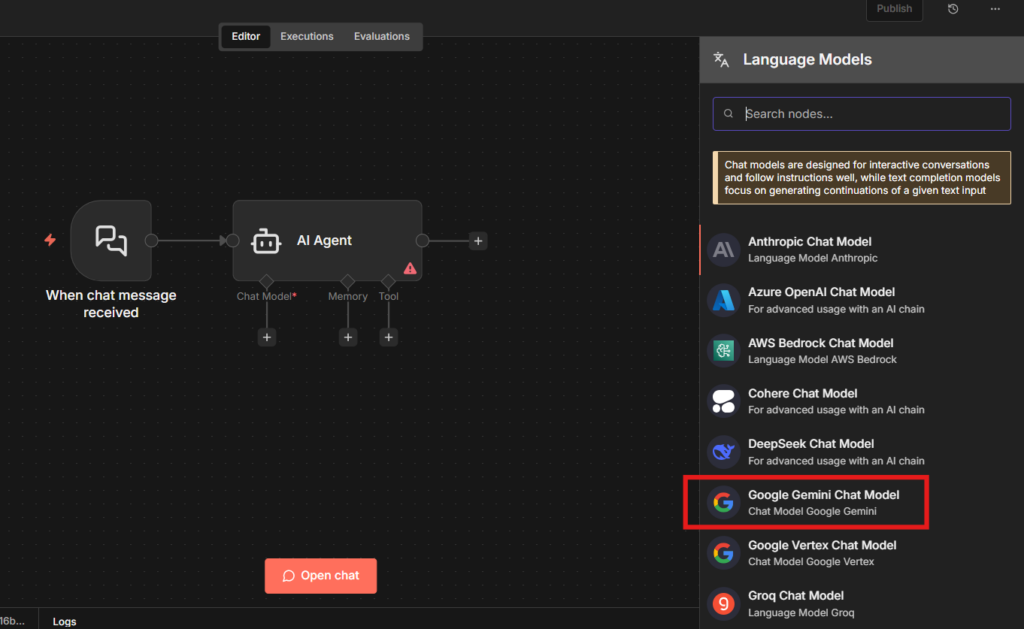
For most use cases, I use Gemini, and for starting point Gemini, and Anthropic Claude are good.
How to obtain Gemini API Key
- Go to Google AI Studio
- On the sidebar, Click on “Get API Key”
You don’t need to manually create a Google Cloud Console project to get a Gemini API key, one will be created automatically when you generate the key.
If you don’t have the credentials setup yet, the credentials setup guide walks through exactly how to add them (For Google Cloud Console)
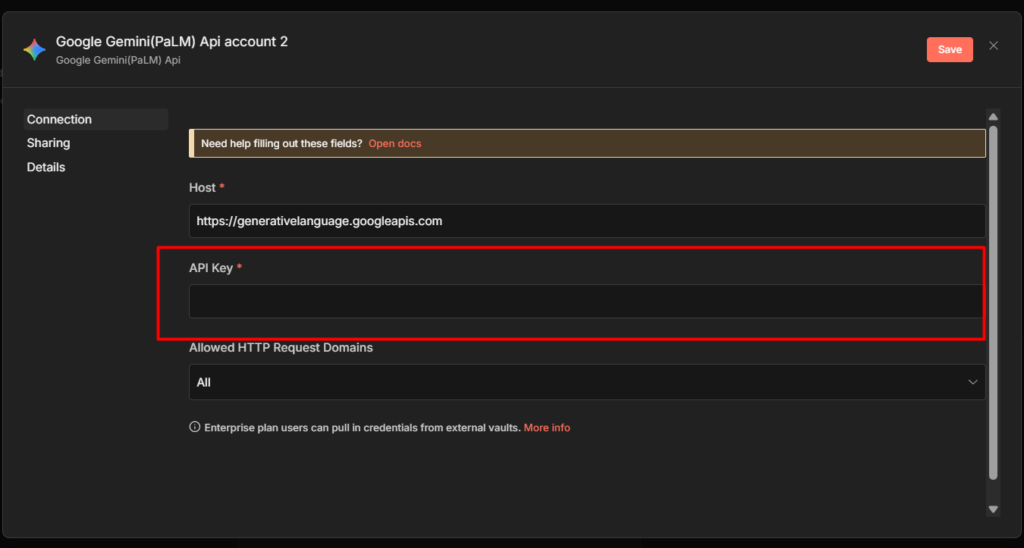
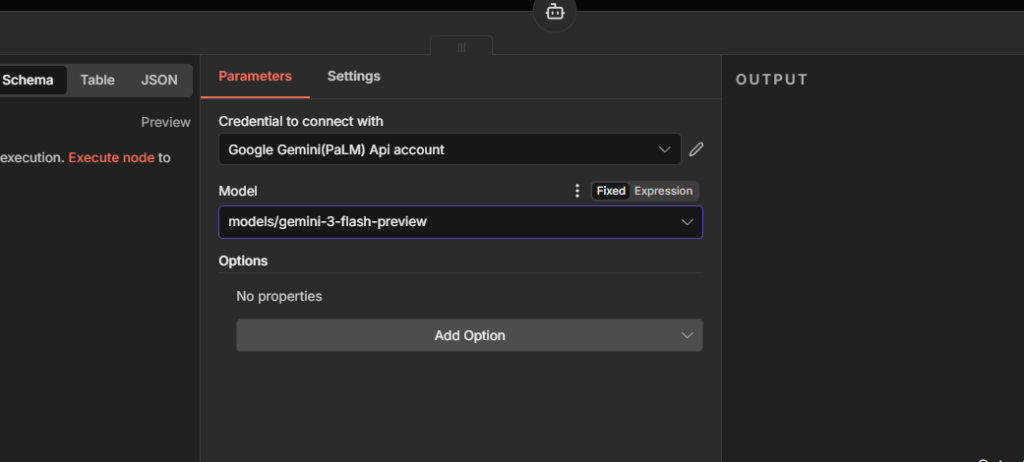
Paste the Google Gemini API key here to complete the credentials. That’s it and then you will be needed a model though, for this tutorial I go with models/gemini-3-flash-preview
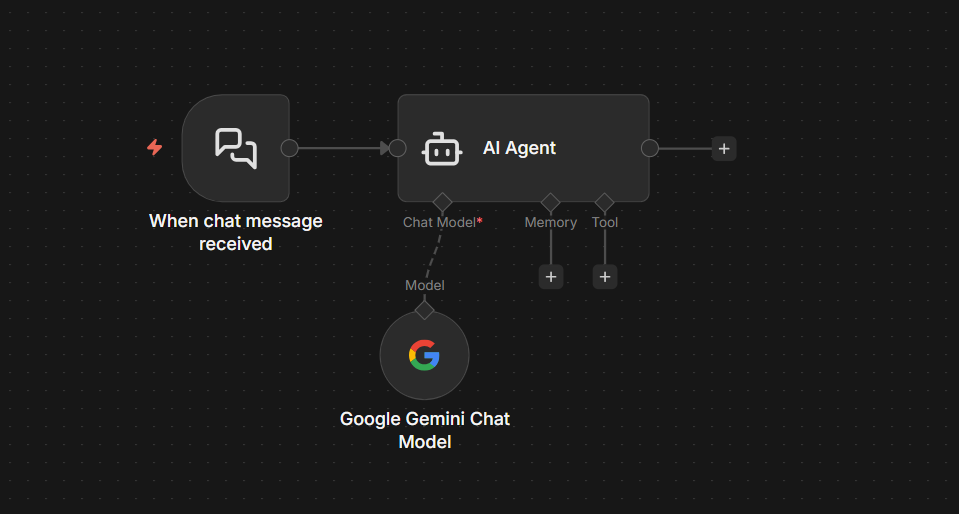
Connect your chosen model to the AI Agent node’s chat model input.
Step 4: Add a Simple Memory (for Testing)
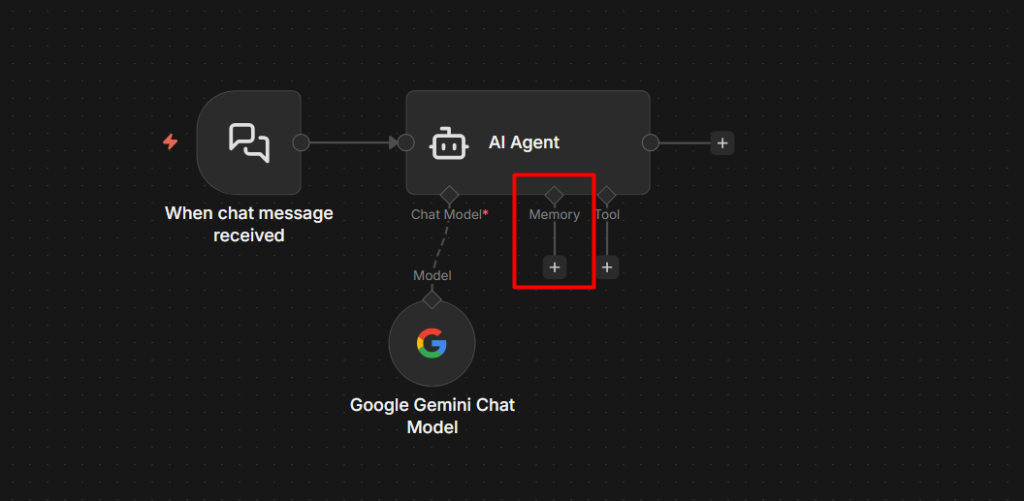
Still on the sub-node area, connect a Simple Memory node to the Memory input.
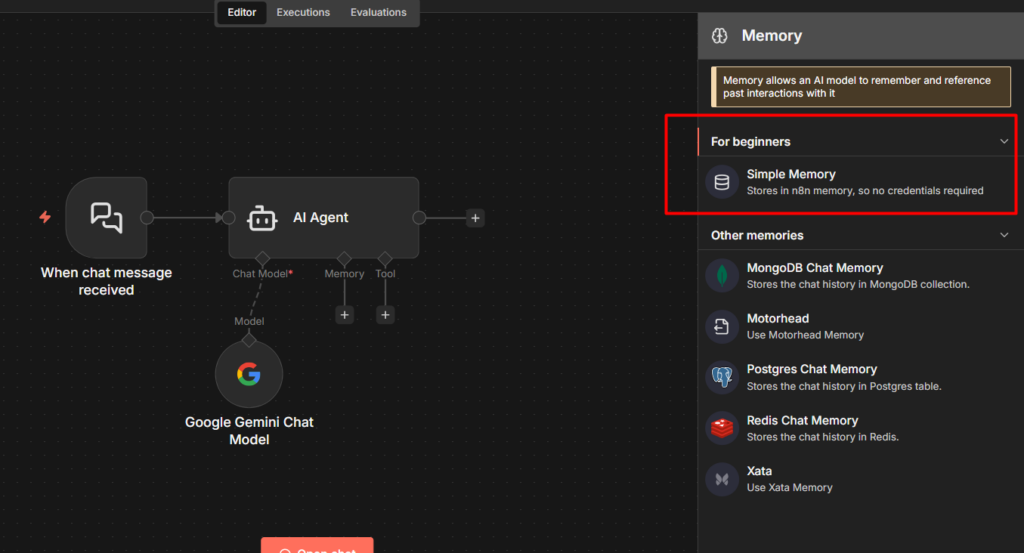
Simple Memory keeps the conversation history in RAM during the current workflow session. This means your agent will remember what was said earlier in the same conversation – but only until the workflow restarts or the session ends.
This is perfectly fine for testing, I’ll cover what to use in production in the next section, because this is exactly where most people get burned.
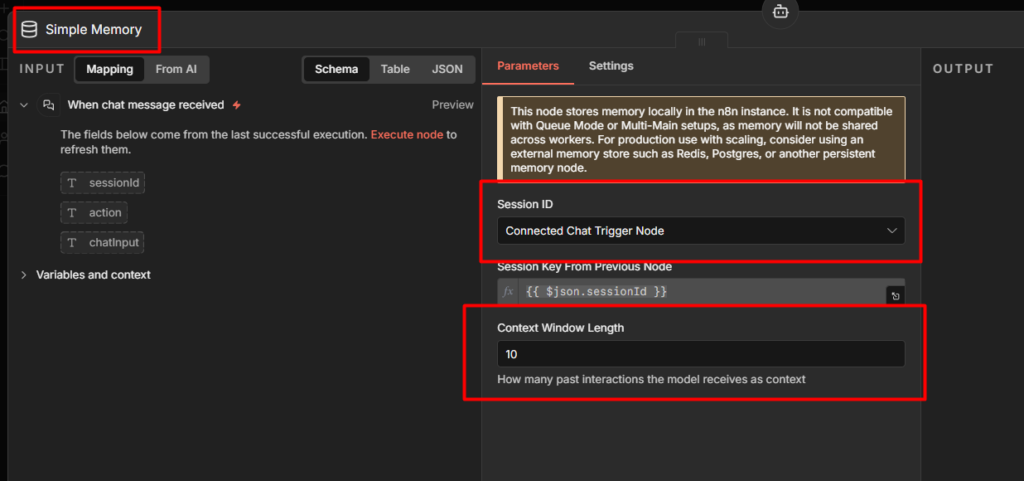
Leave the Context Window Length at 10 messages for now. That’s enough for most conversation without overloading the model’s context window.
Check it out here to learn more about How to Use Simple Memory Node in n8n
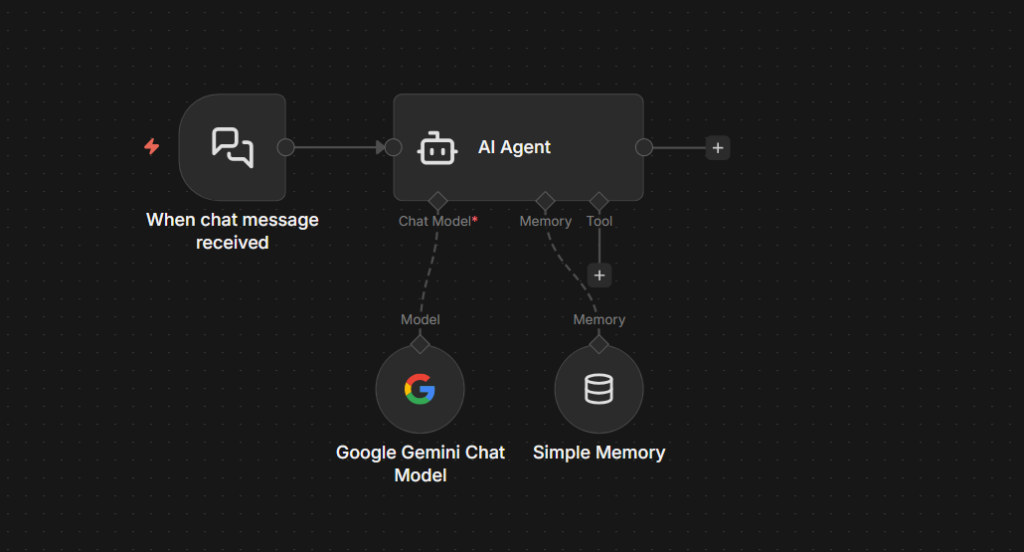
Step 5: Add a Tool
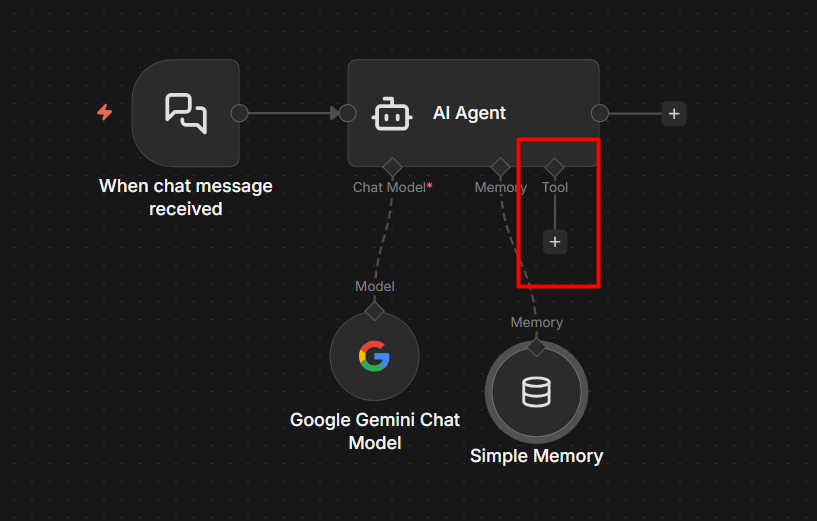
Tools are how the agent takes actions beyond just generating text. For this example, add the built-in Calculator tool, It’s already in n8n, no setup required, and it lets you see the agent’s tool-calling behavior immediately.
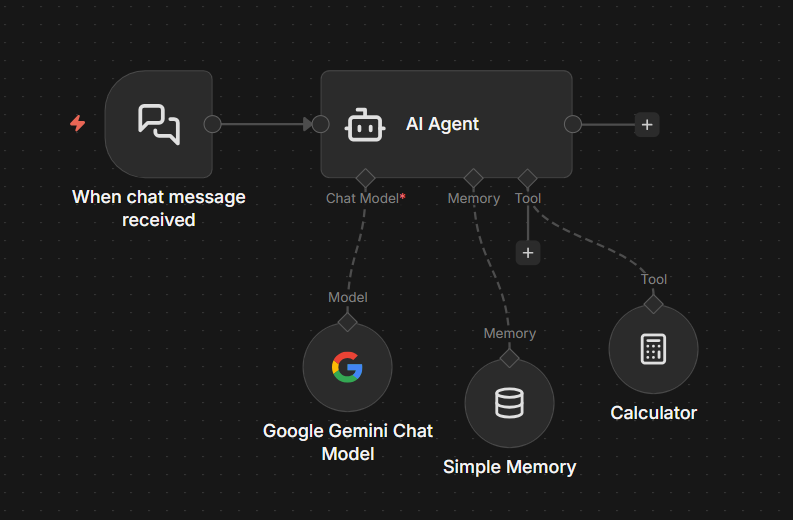
Connect it to the Tools input on the AI agent node.
Here’s what actually happens when a user asks “What’s 15% of $340 for a tip?” – The agent recognizes it needs to calculate something, calls the calculator tool with 340 * 0.15, gets 51 and includes that in its response. You can watch this happen step by step in the execution logs.
Step 6: Test It and Publish It
Click the Chat button in the Chat Trigger node (or the Open Chat button that appears in the UI). A chat window opens
Send a message: “Hey, I’m locked out of my account“
You should see the agent respond. But here’s the important part, click the execution that appeared in your workflow. Open it and look at the AI Agent node’s output. You’ll see the reasoning steps, What the model decided, which tool it chose (or didn’t), and why.
This is the execution log view, and it’s one of n8n’s biggest strengths for working with agents. You can see exactly what the agent was thinking at each step. When something goes wrong, this is where you debug it.
When you’re ready to use this in production, toggle the workflow to Publish in the top right corner.
Choosing The Right Memory for Your Agent
Simple Memory works perfectly in testing. The moment you deploy and restart your n8n instance, it forgets everything. Every conversation starts from scratch. Users have to re-explain their context every single time.
| Memory Type | Persists | Use Case |
|---|---|---|
| Simple Memory | ❌ No | Testing only, local development |
| PostgreSQL memory | ✅ Yes | Long-term context, production chatbots |
| Redis Memory | ✅ Yes | High-volume, fast session-based agents |
Motorhead Memory is deprecated as February 9, 2026. The Motorhead project is no longer maintained. n8n has hidden it from the nodes panel for new workflows.
For production, use PostgreSQL Memory. It stores conversation history in a database table, survives restarts, and works with n8n’s native PostgreSQL integration. If you’re already self-hosting n8n with PostgreSQL as your n8n database, you can point the memory node at the same database.
There are two things to get right with any persistent memory setup
Session IDs must be unique per user. If you hardcode a session ID or leave it as a default, every user shares the same memory. Your agent will get confuse one user’s conversation history with another’s.
Generate session IDs dynamically from a user identifier – their email, a user ID from your system, or a UUID.
Set a reasonable context window. Storing 500 messages of history and sending all of it to the model on every request is expensive and often counterproductive. Most agents work well with the last 10-20 exchanges anything beyond that and you’re paying for tokens that don’t meaningfully improve responses though.
3 Things That Break n8n AI Agents
1. Agent “forgets” everything after deployment
Conversations work perfectly in testing. In production, the agent has no memory of previous messages.
You’re using Simple Memory and the workflow restarted (due to a deploy, update, or n8n instance restart).
As a fix, Switch to PostgreSQL or Redis memory before going live. This is not optional for any agent that needs to maintain context across sessions.
2. Agent loops or keeps asking clarifying questions
The agent send multiple messages, asks the same question repeatedly, or never produces a final answer.
Your system prompt is too vague. The agent can’t determine when it’s done, so it’s keeps going.
Add explicit stopping conditions to your system prompt
When you have enough information to answer, respond directly.
Do not ask more than one clarifying question per response.
If you cannot find the answer using available tools, say so clearly and stop.
Also check your context window length. If it’s too long and the agent is reading 50+ messages of history, it sometimes gets confused about what was already resolved.
3. Tool calls failing
The agent responds as if it used a tool, but the action didn’t actually happen. No error shown to the user.
The tool node is failing (expired credentials, API error, wrong field mapping) but the agent is continuing anyway and generating a plausible-sounding response without real data.
As a fix, Open the execution and click into the specific tool node that fired. The error will be there.
This is almost always a credential issues – check our error handling guide for how to setup error notifications so these don’t go unexpected.
Also, be explicit in the system prompt that the agent should acknowledge when a tool fails rather than guessing.
HITL Approvals + MCP Trigger
Two features shipped in early 2026 that change how you build agents. Most content out there hasn’t covered them yet.
Human-in-the-Loop (HITL) Tool Approval
You can now mark specific tool as gated. The agent cannot execute them until a human explicitly approves the action.
This is a big deal for high-stakes operations. Before this feature, if you built an agent that could send emails or delete records, you were trusting the agent’s judgement entirely, or using fragile prompt-based guardrails (“only do this if you’re sure”). Neither was reliable.
Now you can set specific tools – “send email”, “delete record”, “post to production slack” to require approval.
When the agent decides to call one of those tools, the workflow pauses.
The approval request get routed to whoever needs to review it. They approve or reject. The agent continues or stops.
Approvals are not limited to one interface either. You can route them through slack, email, a webhook.
Any standard n8n node. So a high-priority approval can interrupt the right person on the right channel.
MCP Server Trigger
n8n now supports Model Context Protocol (MCP), which means external AI systems – other agent, claude, GPT – can call your n8n workflows as tools.
You build a workflow, expose it via the MCP Server Trigger, and it becomes available as a callable tool in any MCP-Compatible AI system.
This opens up multi-agent architectures where n8n handles the automation side while a more capable reasoning model handles complex decisions.
Worth exploring once you’re comfortable with single-agent workflows.
My Final Thoughts
The support triage example in this post is deliberately simple. Once you have this working, add a real tool, a HTTP Request node that checks your knowledge base, or a Google Sheets lookup for customer data.
That’s when agents start to feel genuinely useful.
Built your first agent? Head back to the complete n8n beginner guide to see everything you’ve covered from day one.
And don’t forget to subscribe to our weekly digest email newsletter. Good luck 🙂