
You built your first AI Agent in n8n. It responded well, sounds smart, and handles questions exactly how you configured it.
Then you type “What did I just tell you?“
And it says “I don’t have information about that“
That’s not a prompt problem. Your agent has no memory of it. Every single message it receives feels like the first one, a completely fresh conversation with no context of what came before.
The Simple Memory fixes this. Here’s how to set it up correctly, what the settings actually mean, and the two mistakes that will silently break your workflow if you skip this post.
What the Simple Memory Actually Does?
When you send a message to an AI Agent in n8n, the request goes to an LLM like Claude or Gemini.
The LLM processes that one message and sends back a response. That’s it. No memory of previous turns each API call is completely independent by design.
The Simple Memory sites between your chat trigger and your AI Agent and solves this by keeping a rolling of log of recent conversation exchanges.
Before each new message goes to the LLM, n8n injects the recent chat history into the request automatically. The LLM now has context.
One important thing to understand upfront is, This memory lives inside your n8n instance’s process. It’s not saved to a database. If your n8n instance restarts, all conversation history clears. For prototyping and internal tools, that’s usually fine. For production chatbots with real uses, I’ll cover that at the end.
How to Add Simple Memory to an AI Agent
If you already have a workflow with an AI Agent node set up, adding memory takes less than 5 seconds.
Step 1
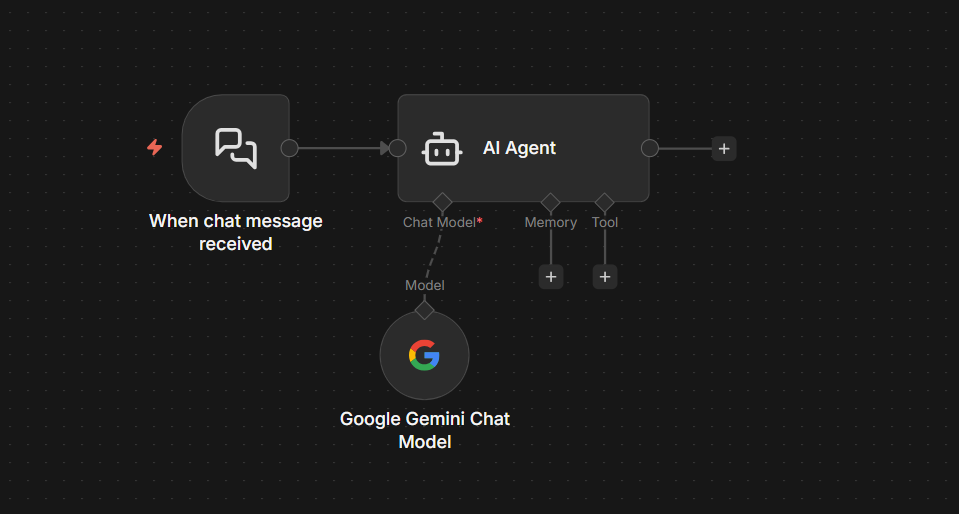
Open your workflow on the canvas. Find your AI Agent node.
Step 2
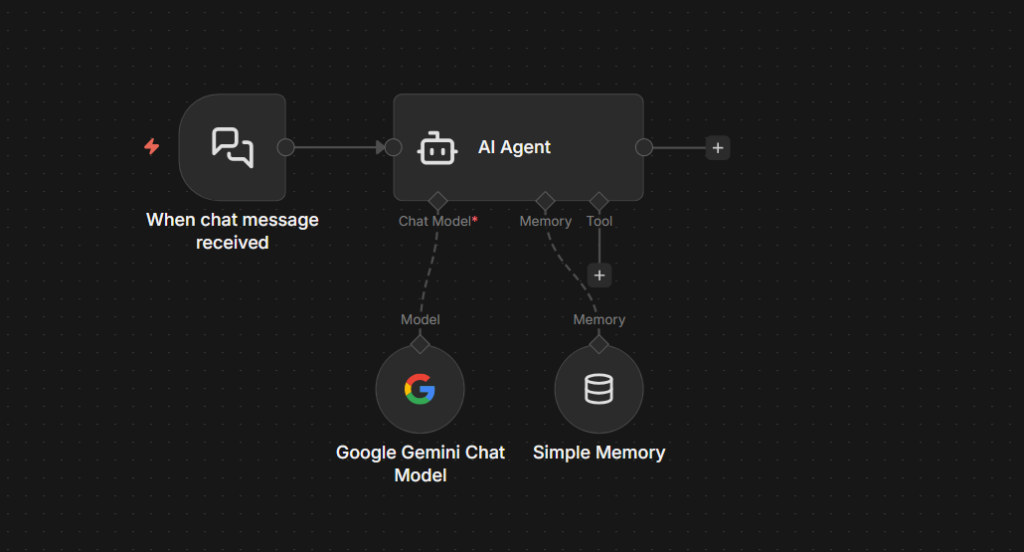
At the bottom of the AI Agent node, you’ll see a connector labeled Memory. Click it.
Step 3
A panel opens with available memory nodes. Select Simple Memory
A new node appears connected to your AI Agent via the memory connector.
Step 4
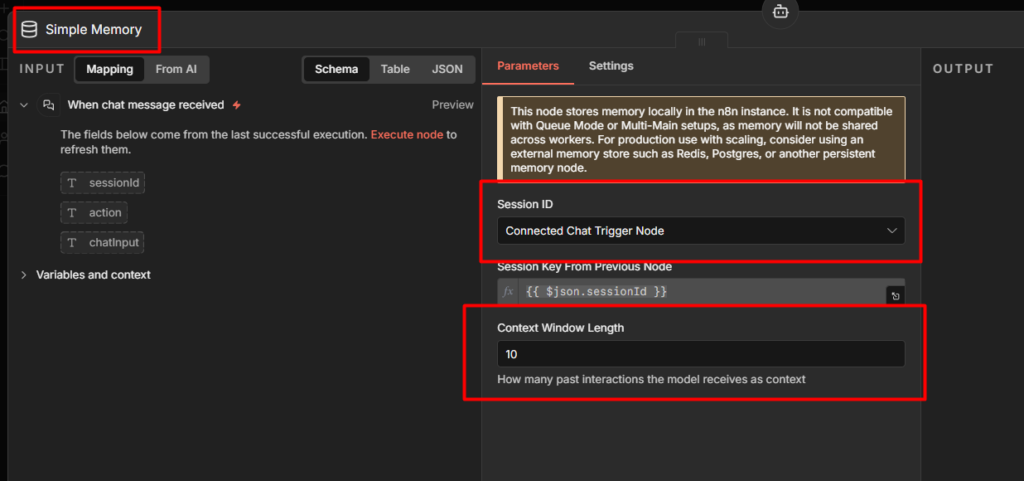
Click into the Simple Memory node to configure it. You’ll see two things
- Session Key: The identifier that groups messages into a conversation. When you’re using the On Chat Message trigger, n8n fills this automatically from the
sessionIdpassed in the request. You don’t need to touch it. - Context Window Length: How many recent exchanges to keep in memory. The default is
5.
Step 5
Save your workflow and test it. Open the chat, tell the agent your name, send a few more messages, then ask it to recall something you said earlier.
It will remember.
If you don’t have an AI Agent workflow yet. Start here: How to Build an AI Agent in n8n
What “Context Window Length” Actually Means?
This setting trips up almost everyone at the first time.
Context Window Length counts exchanges, not individual messages. One exchange = one message from you + one reply from the AI. That’s two messages stored.
If you set it to 5, the agent keeps the last 5 exchanges – 10 messages total in the memory.
| Context Window Length | Exchanges Remembered | Messages in Context |
|---|---|---|
| 1 | 1 | 2 (1 user + 1 AI) |
| 5 (default) | 5 | 10 |
| 10 | 10 | 20 |
Why does this matter? Because every message in the context window gets sent to the LLM on each new request. A window of 10 means 20 messages worth of tokens on every call. At scale, that adds up fast in both cost and response latency.
For most use cases, the default of 5 works well. If your conversations are short and task-focused (book an appointment, answer a product related questions), you can drop it to 3. If you’re building something more conversational where users reference things from much earlier, bump it up to 8 or 10 – just know you’re trading off token cost for context depth.
2 Common Errors and How to Fix Them
“No sessionId” error
This one shows up when you’re triggering your AI Agent from something other than On Chat Message trigger, a Webhook, a Scheduled trigger, or a manual test run.
This Simple Memory node expects a session identifier to know which conversation it’s working with. The On Chat Message trigger provides this automatically. Everything else doesn’t.
How to fix it for testing? Open the Simple Memory node and manually type a static value into the Session Key field – something like my_test_session. This tells the node to treat all requests as part of one conversation. It works fine for building and debugging.
How to fix it for production? If you’re triggering your agent from a webhook, you need to pass session identifier in the request and map it to the Session Key field. For a customer support bot, that might be the user’s email address or account ID. For a telegram bot, It’s the chat ID. Whatever uniquely identifies a conversation for your use case.
{{ $('Webhook').item.json.body.userId }}Map that expression to the Session Key field and every user gets their own isolated memory. See how to handle errors in n8n if you want to add proper error handling around sessions that fail to resolve.
Two memory nodes reading from the same session
If you add more than one Simple Memory node to the same workflow without changing their Session Keys, they both read from and write to the exact same memory. This causes weird behavior, one part of your workflow may overwrite context that another part needs.
The fix is simple, give each Simple Memory node its own unique Session Key. Something like workflow_a_session and workflow_b_session keeps them separate.
One Limitation You Must Know Before Going Live
Simple Memory does not work if your n8n instance runs in queue mode.
Queue mode is a self-hosted setup where multiple worker processes share the load. When a workflow executes, n8n routes it to whichever worker is free. The Simple Memory node stores data inside the worker’s process memory, not in a shared database. If two consecutive messages from the same user land on different workers, the second worker has no idea what the first one stored.
The result isn’t an error. The agent just loses memory mid-conversation, silently with no warning.
Who this affects: If you’re running self-hosted n8n with Redis and multiple workers enabled, this is your setup. If you’re on n8n Cloud or a Single-instance self-hosted setup, you’re fine.
What to do instead: Switch to the Postgres Chat Memory node. It stores conversation history in a database that every worker can access.
When to Replace The Simple Memory
Simple Memory is the right starting point. Zero configs, nothing to provision, works immediately.
But there are two situations where you’ll need to replace it.
You’re going to production with real users. Simple Memory clears on restart. If your n8n instance ever updates, redeploys, or crashes, every active conversation loses it’s history. Users will notice. For anything facing real users, migrate to the Postgres Chat Memory node before you launch.
You’re running in queue mode. As covered above, Simple Memory and queue mode don’t work together. Postgres is the standard replacement here too (or Redis Chat Memory).
The migration is straightforward. Set up a Postgres database, add your credentials to n8n, and swap the Simple Memory node for the Postgres Chat Memory node. n8n creates the required table structure automatically on first run.
Redis Chat Memory is also an option if you need very fast read/write performance for high-traffic real-time applications. For most teams, Postgres is the simpler and durable choice though.
Once you have memory working correctly, the next thing worth exploring is what happens when you need the agent to manage that memory – Injecting system context, clearing history on demand, or inspecting what’s currently stored. That’s what the Chat Memory Manager node is for, and it connects to whichever memory node you’re already using.
Check it out here: Building a Rate Limiter in n8n with Upstash Redis
Final Thoughts
None of this requires being an expert. It requires being willing to build something, break it, understand why, and built it better.
The developers who create genuinely useful AI agents aren’t the ones who read the most about AI. They’re the one who ship something working, notice where it falls short, and keep iterating.
You now know how memory works in n8n. You know the tradeoffs, the failure modes, and when to upgrade. That puts you ahead of most people who just drop a node and assume it works.
Go build something worth remembering