
Workflows becomes useful when they make decisions.
You need to route customer emails differently based on domain, process high-value orders separately, or send urgent tickets to different teams.
That’s conditional logic – having your workflow ask questions and take different action based on the answers.
I’ll show you how to build decision-making into your n8n workflows using IF nodes, switch nodes and conditional expressions. more importantly, I’ll show you how to troubleshoot when things don’t work as expected, because that’s where most people get stuck.
If you’re new to n8n, I recommend starting with building your first workflow to understand the basics. This guide assumes you know how to add nodes and execute workflows.
The IF Node: Primary Decision Making Node
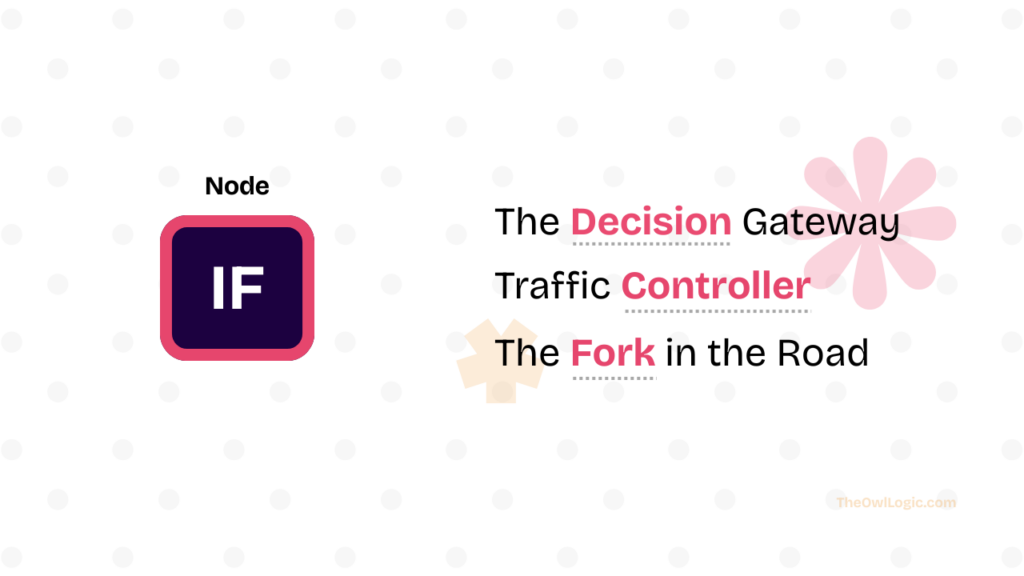
The IF node looks at your data and splits it into two paths: true and false. Data that matches your condition goes down the true path. Everything else goes down the false path.
Here’s what make this powerful: both branches can have completely different workflows attached. Your true branch might send a Slack message while your false branch updates a database. The IF node routes each piece of dat to where it needs to go.
The data itself doesn’t change when it flows through an IF node. If you send in a customer record, that exact same customer record comes out, just on either true or false output.
IF node inspects the data and makes a routing decision, but the data stays intact.
Understanding how data flows through conditional nodes is critical. I cover the fundamentals in my guide on how n8n workflow nodes handle data, but here’s the quick version, when an IF node receives multiple items, it evaluates each one individually. Some items might go true, others false. Both outputs can have data at the same time.
Key Takeaways
- Learn how to filter and route data using
IFandSwitchnodes with real customer scenario (Example of real use case provided) - Find out why your condition fails (data type, mismatches, case sensitivity) and how to fix them
- mixed AND/OR logic using expressions when the UI dropdown isn’t enough
- Download the workflow JSON below to import and test it in your n8n instance, or follow the step by step guide
How to Setup Your First IF Node
Let me walk through a practical example, filtering customer orders, Let’s assume, we are going to give a discount for those who have purchased above $1000 for upcoming holiday season, and we are going to send them emails. Well, we have a lists of customer db with purchasing value. Let’s break down the core objectives.

Our goal is,
- Find customers who had purchased over
$1000 - Get their
email address. - Start email sequence for Holiday season reminder with VIP 20% Offer above $1200 purchases.
- Don’t do anything to those who purchased below $1000
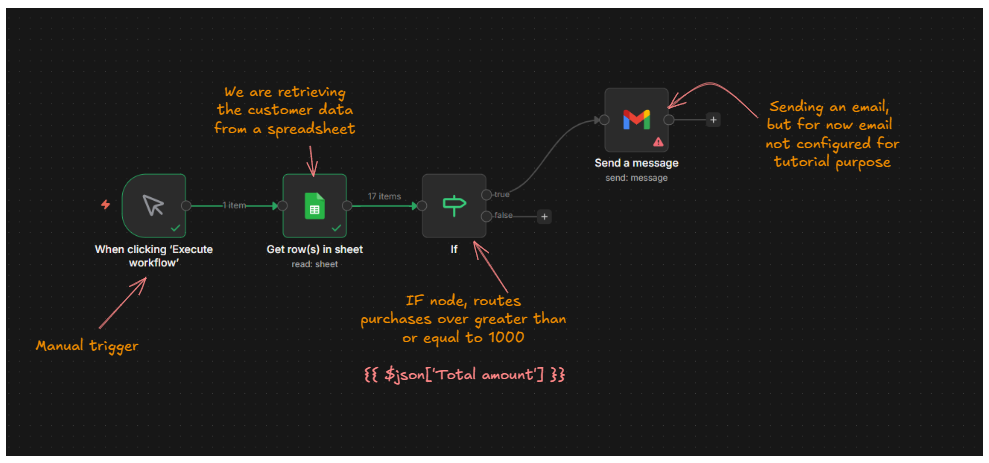
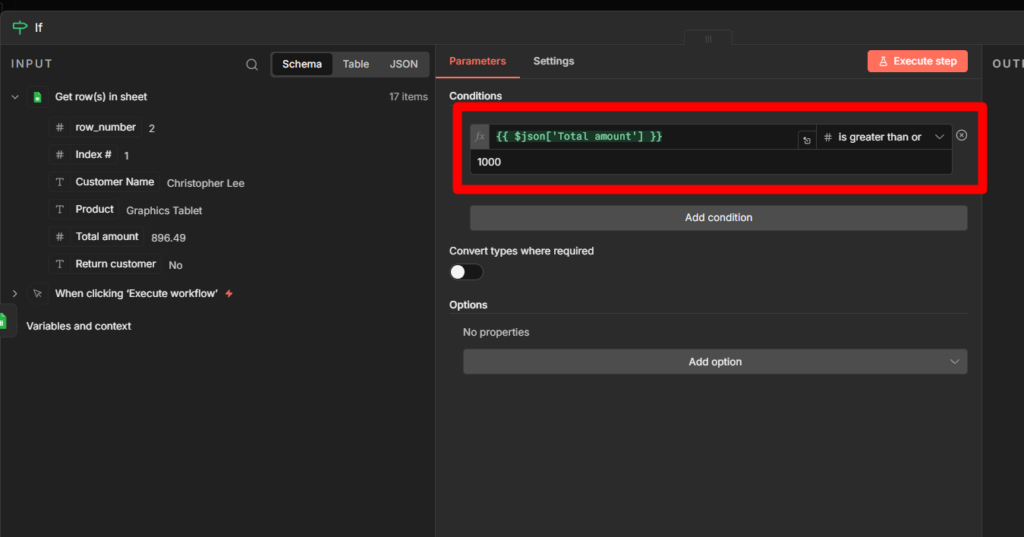
What do you think it will happen now? you got any guesses here.
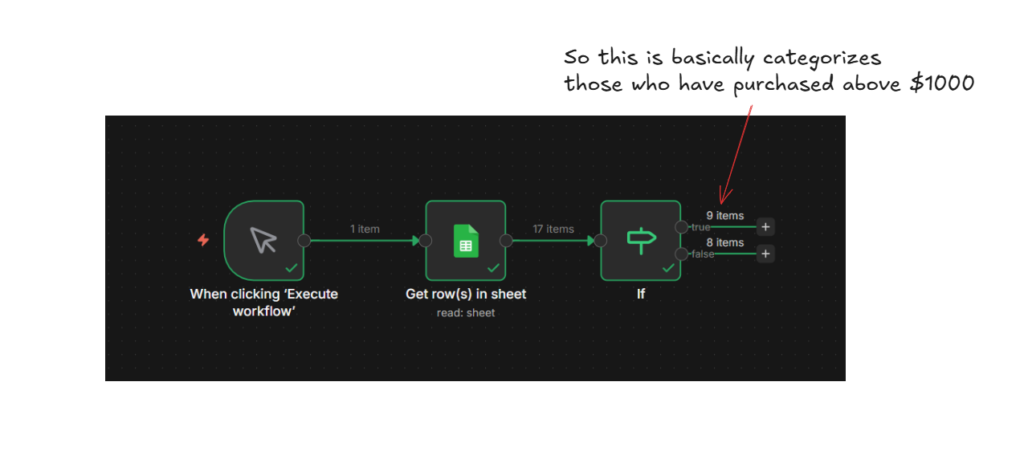
Yes, you get 9 customers who had purchased over $1000, and then you can add any node, like gmail, to send them a message with coupon code, or whatsoever.
Same for false branch too, either you can send to sheets or whatsoever, that’s totally up to you how you want to manipulate the data you have.
Understanding Data Types and Comparison Operators
Every comparison in an IF node requires you to select a data type. This tells n8n how to interpret the values.
Comparing “1000” as a string different from comparing 1000 as a number.
Let’s expand our customer workflow (what we did earlier with IF) We filtered by purchase amount, but what if we only target US customers? or customers who haven’t received the emails recently?
Each of these checks different data-type.
Choosing the Right Data Type
- String: Text data like names, emails, or country codes. Use this when comparing text, even if the text contain numbers (like phone number or zip codes)
- Number: Numeric values for mathematical comparisons. Purchase amounts, quantity, age, or any value you need to compare them mathematically.
- Boolean: True or False values. Use this when checking if something else enabled, or active. for an example: John doe is a US customer, so in the sheet there is a column header with US country, true.
- Date & Time: Timestamps and dates. Use this when comparing if something happened before or after specific times.
// Number - what we already did
{{ $json.purchaseAmount }} larger than 1000

// String - check if customer is in US
{{ $json.country }} equals "US"

// String - check email domain
{{ $json.email }} contains "@gmail.com"

// Boolean - check VIP status
{{ $json.isVIPMember }} equals true

// Date & Time - check recent activity
{{ $json.lastPurchaseDate }} after "2026-01-23"
Common Operators Mistakes (And How to Avoid Them?)
Using “equals” when you need “contains” – You want to check if customer uses Gmail.
Don’t check if email equals “gmail.com”. The full gmail is “[email protected]”, which doesn’t equal “gmail.com”. Use contains instead.
// Wrong
{{ $json.email }} equals "gmail.com"  // Never matches

// Right
{{ $json.email }} contains "@gmail.com"  // Matches [email protected]
Comparing numbers stored as strings: your database might return purchase amount as strings, If your data "1000" (with quotes), that’s a string.
Comparing it as a number might not work because n8n tries to convert, but it is unpredictable.
Check your actual data type in the expression editor. If you see quotes around the number, convert it first.
{{ Number($json.purchaseAmount) }} larger than 1000or just use string comparison if that makes more sense for your data.
{{ $json.purchaseAmount }} equals "1000"Date format mismatches – Dates come in many formats. n8n expects ISO 8601 Format (2026-01-15T10:30:00Z) for reliable comparisons. If your dates look like “01/15/2026” or “January 15, 2026”, you’ll need to convert them first.
Case sensitivity: String comparisons are case-sensitive by default. “US” doesn’t equal “us”. If you need case-insensitive matching, convert both values to lowercase first:
{{ $json.country.toLowerCase() }} equals "us"Building Workflow #2 With New Data
I hope, I didn’t bore you guys, you need to learn and understand this to keep your head clean when you manipulating or mapping data. let’s go.
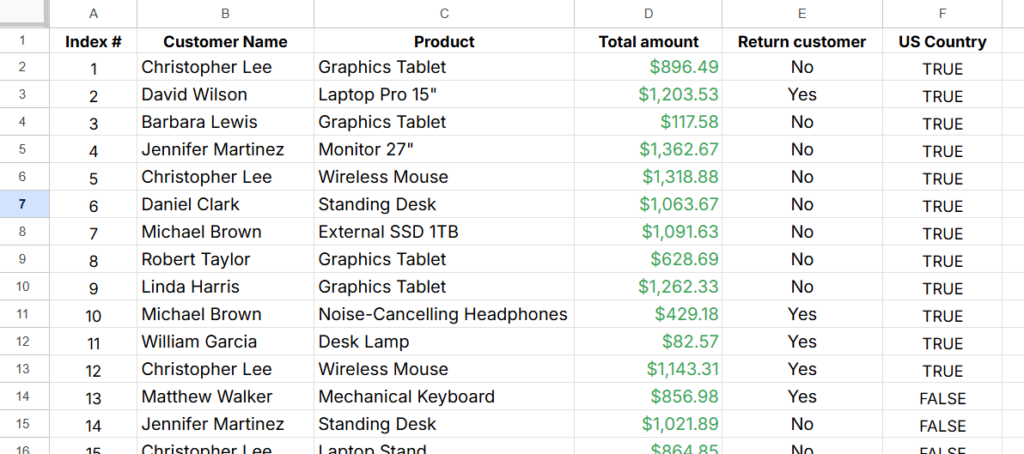
Now our sheet has US Country on F Column , and I added boolean value TRUE / FALSE.
Our objective is to send emails to those who purchased over $1000 US customers.
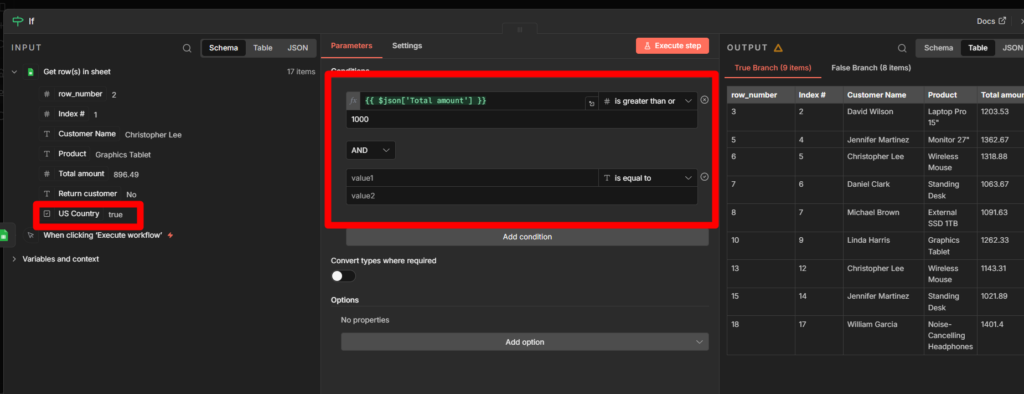
Now we need to map the US country to value.
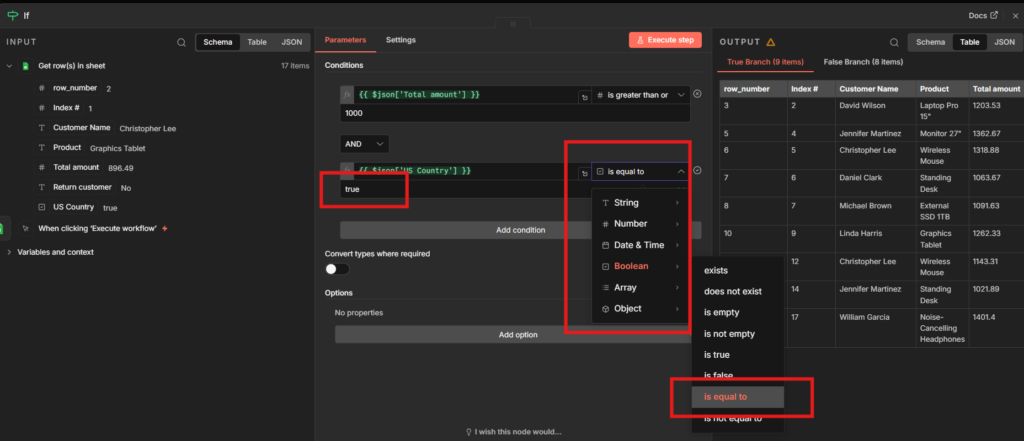
Here’s the steps you need to take.
- Drag the US country parameters, directly to the value, then n8n automatically detects it’s data type.
- After that you need to select whether it is true or false.
- I select “TRUE” because that’s my core objective.
- You can execute the workflow now.
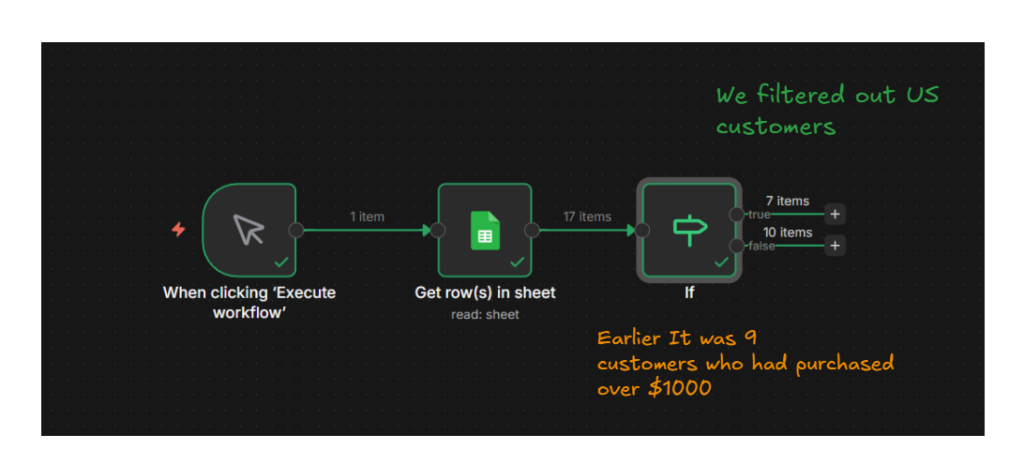
Yay, we got it. but n8n do all the heavy lifting for your when you drag and drop the parameters, still, you need to understand what is happening behind the scenes.
Data Type Reference
| Data Type | Common Operators | When to Use |
|---|---|---|
| String | equals, contains, starts with, ends with | Email domains, country codes, status values |
| Number | larger, smaller, equals, between | Purchase amounts, ages, quantities |
| Boolean | equals (true/false) | Active status, feature flags, yes/no fields |
| Date & Time | after, before, between | Last purchase date, signup date, deadlines |
Building Multiple Conditions (AND/OR Logic)
In the previous section, we added a second condition to our IF node using the AND operator. Wait, where did I add that?
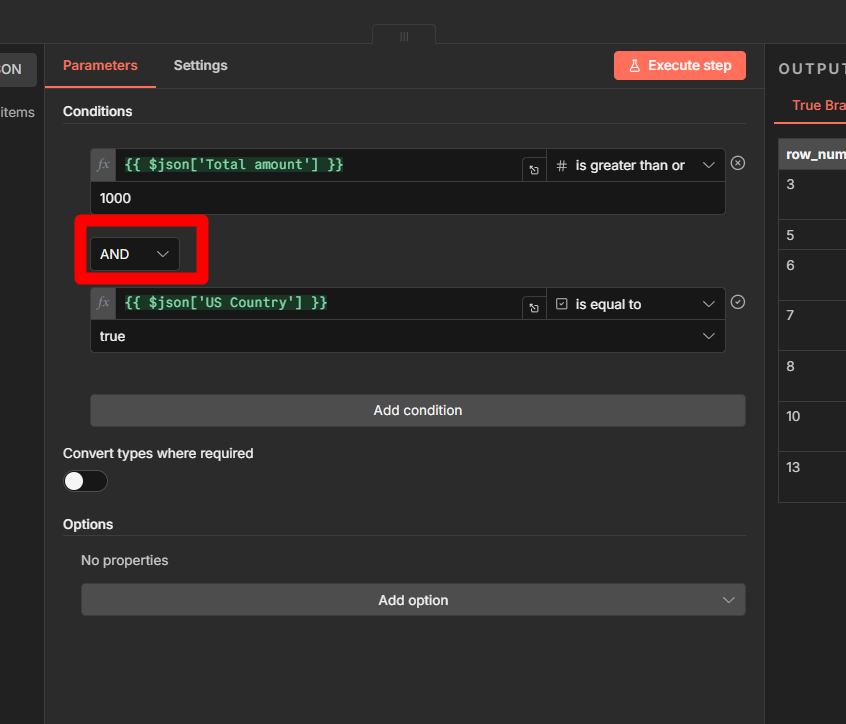
Yes, It is basically chaining if the conditions are equals then it will provide us filtered data. so we checking greater than or equals to 1000, and customer need to be in United states, if both conditions are satisfies, then n8n passed the appropriate data to next node.
What AND Logic Does?
- Customer A: $1200 purchases, US customer – Both true – Goes to true output
- Customer B: $1200 purchase, UK customer – One false- goes to false output
- Customer C: $800 purchase, US customer – One false – goes to false output
- Customer D: $800 purchase, UK customer – Both false – goes to false output
Only Customer A gets the email, AND logic is strict, everything should match.
Understanding OR Logic
Now let’s change the business rule. Marketing team wants include VIP members even if they are spent less than $1000.
Let’s practically work on this in a workflow I guess, that would seems easier to understand.
Workflow #3 AND OR Logic Combined
so as we said, we need to add a new rule here. We are going to add a new column as VIP.
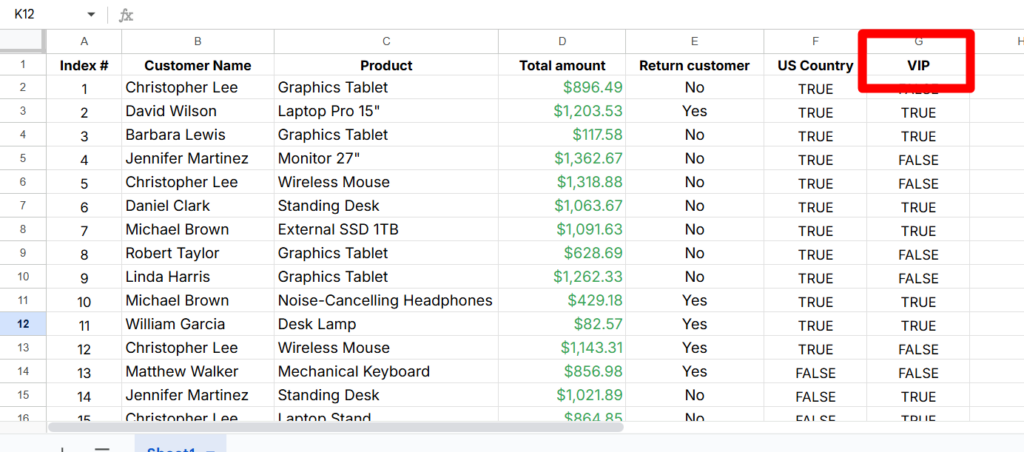
Here’s where the IF Node UI gets tricky. You can’t mix AND or OR operators in the dropdown. When you change the dropdown, n8n changes ALL the operators.
If you have three conditions connected by AND and change one dropdown to OR, all three becomes OR.
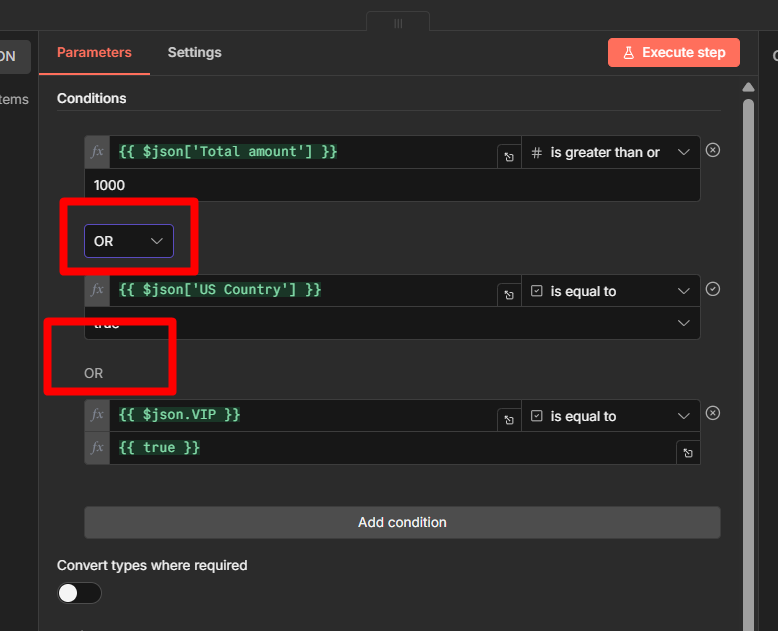
Alright, so how do we gonna solve this?
We use expressions. Instead of multiple conditions with dropdown, we write the entire logic as a single expression
Our new business rule is: Send email if customer has (amount >=1000 AND is a US customer) OR VIP customer.
This is the expression
{{ ($json['Total amount'] >= 1000 && $json['US Country'] === true) || $json.VIP === true }}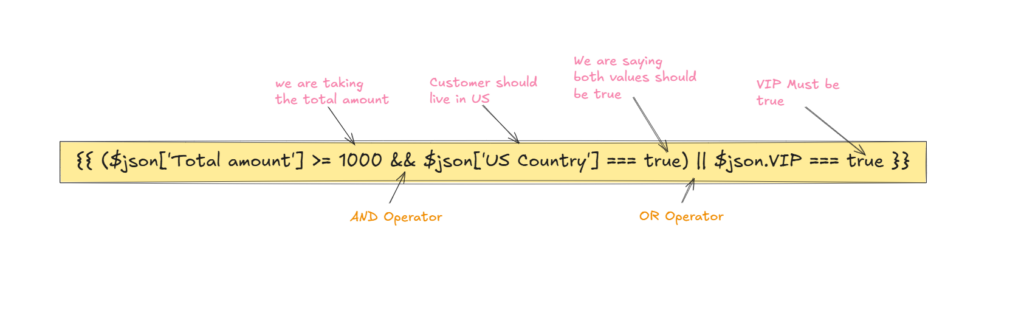
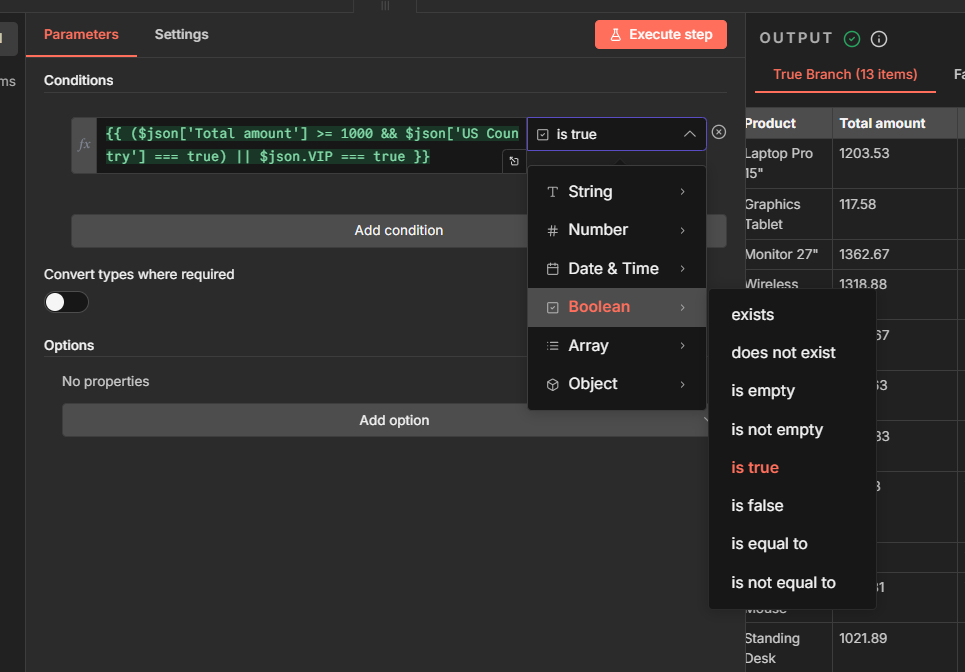
so we are adding an expression stating in the codeblock, and we are expecting a boolean value, which means it should true or false, In our case we need to our values to be true. so we are setting up the values which is boolean is true.
let’s execute and see.
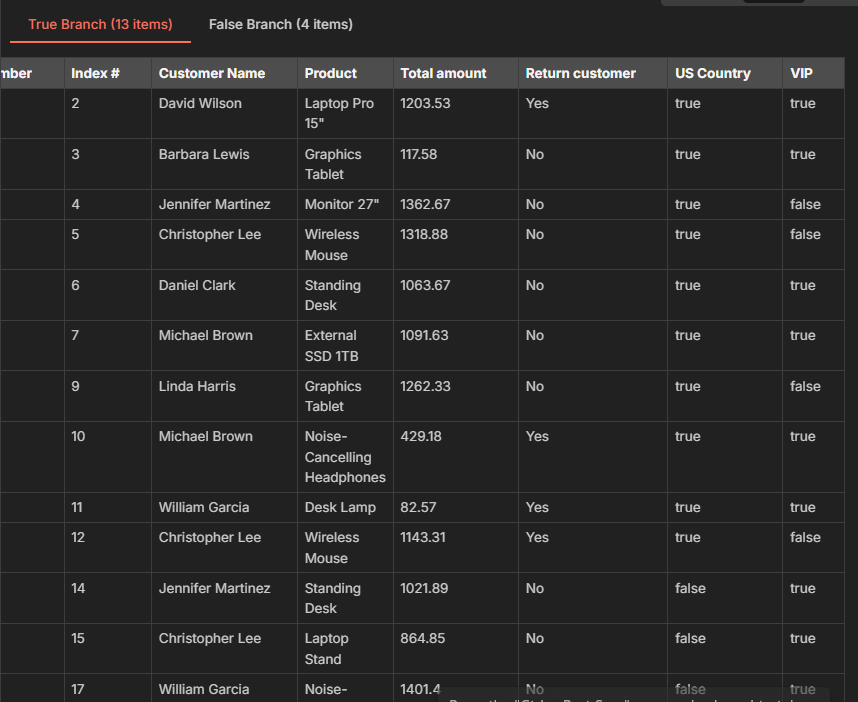
We get 11 customers who match our logic, some because they are high-value US customers, some because they’re VIP customers, and some because they meet both criteria.
Switch Node: Route Data to Multiple Paths
IF node splits your workflow to two directions.
Switch splits into as many direction as you need.
When to use Switch nodes?
So, basically I wanted to give you with the examples of the current workflow, that we are sending customers emails who purchases over $1000 and US based.
- Sort customers by spending tiers (Gold, Bronze, Silver)
- Route support tickets by priority (Low, Medium, High, Urgent)
- Send different emails based on locations (US, UK, Asia, EU)
- Handle different product categories with unique logic.
alright, now you maybe asking, “yeah, we can use it with IF Nodes right?”
Yes, but you should know that when to use IF Nodes?
- Simple yes/no answers.
- Just two paths needed
- Binary choices (approved, rejected, or active/inactive)
Switch has two modes,
- Rules mode: Visual condition (what we’ll use)
- Expression mode: Write code to calculate output number
We’ll use visual mode since it’s more practical for our users.
Workflow #4 Routing by Customer Tier
Let’s route our customers to different email campaigns based on spending levels, In marketing, we should not always treat always who spend higher, even though who spend lower. Engagement is the key.
We have three customer tiers
- Bronze: $0 – $500
- Silver: $501 – $1000
- Gold: $1001+
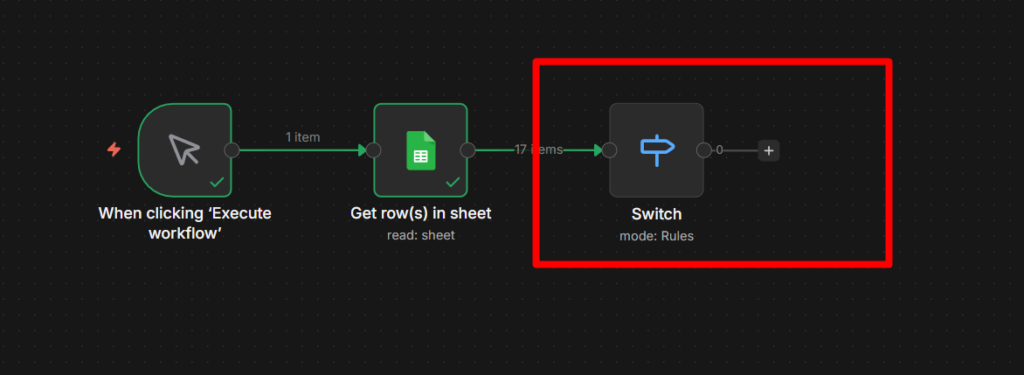
Connect the switch node to the sheets.
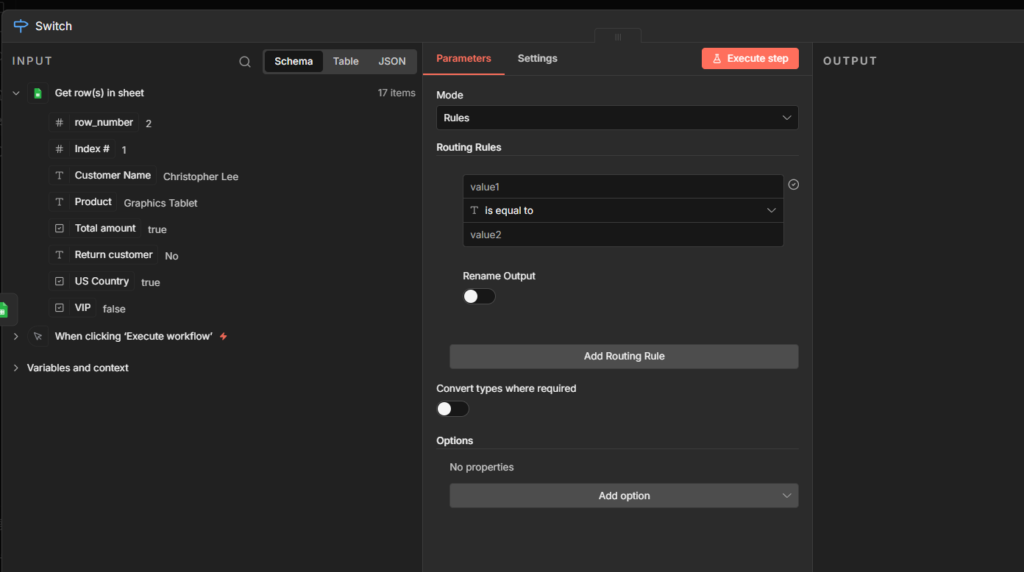
You’ll get this interface, sometimes you won’t see the parameters on the left side node, which means you have to execute them individually to to see the output data of the previous node. Check the reference image below for your understanding
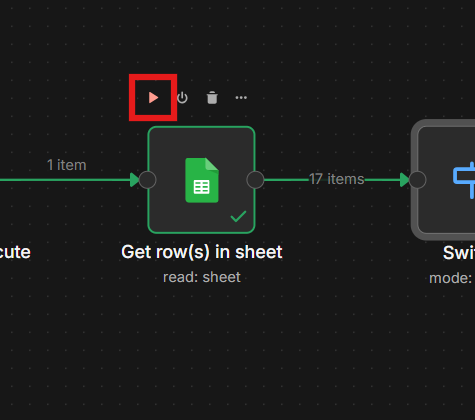
Click on that “Play” icon to execute that node, but not the workflow. Got it. let’s move to the next phase.
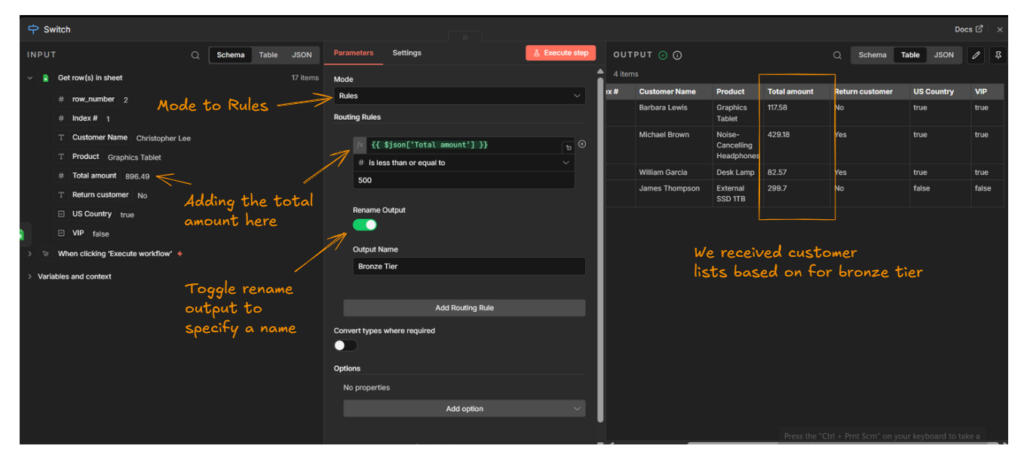
You have to configure this as it is for your criteria or business needs, for now I wanted to create the bronze tier, and it’s done.
Let’s create other tiers as well – click on the Add routing rule to create another route for “Silver tier”
but silver tier is tricky, I’ll let you to solve it, if you couldn’t find the answer then scroll down.
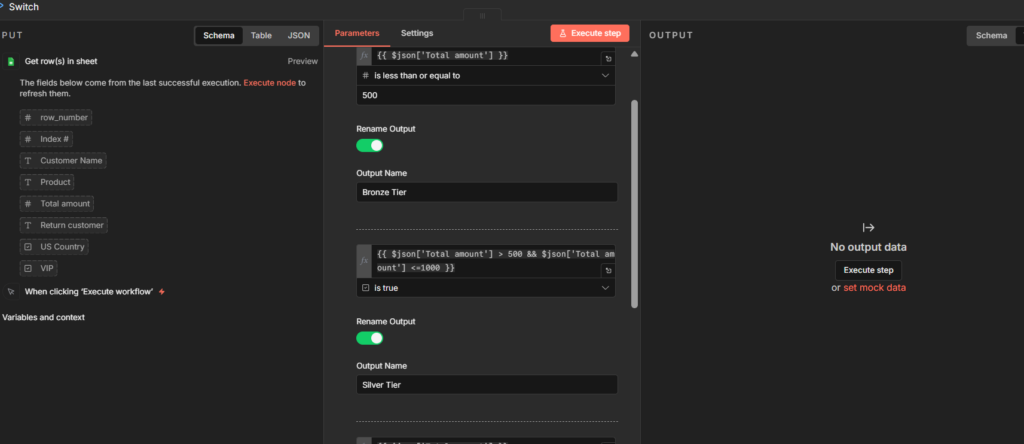
In this scenario, we have to check two comparisons for silver tier
- It should greater than 500
- and less than 1000
But, you cannot write two comparisons in a single field, that’s where we have to use expressions here.
so the logic is simple.
{{ $json['Total amount'] > 500 && $json['Total amount'] <=1000 }}It should be greater than 500 and less than 1000.
and, go for the Gold tier as well.
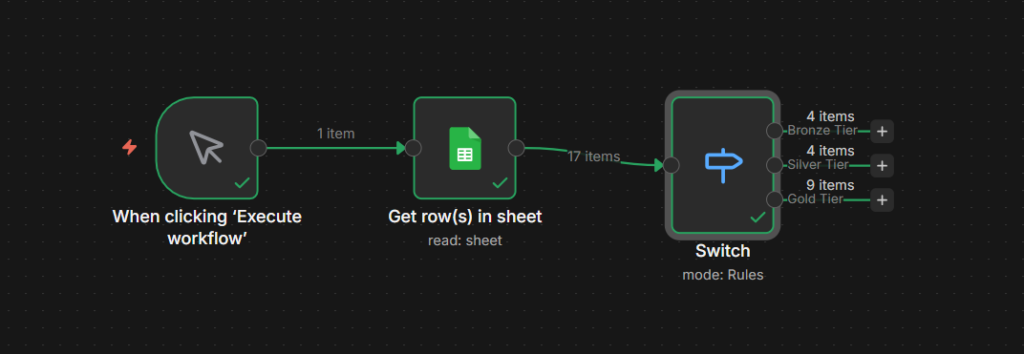
Finally I was able to get the customers list based on tier types, this is how you have to use Switch nodes appropriately. By blending expressions and with help of UI as well like dragging and mapping.
I hope you understood this module clearly, but I prefer to read multiple times, and try with different scenario. This way you can build a great things in the future easily.
I do believe in one thing certainly that mastering basics can do anything.
Get here the Workflow JSON here
Frequently Asked Questions
Q. Why isn’t my IF node working even though my condition looks correct?
The most common issue is a data type mismatch. If you’re value stored as as text “1000” but you comparing it as numbers, the condition will fail. Check your data type in the IF node dropdown, or toggle on the convert types where required option
Q. Can I use OR logic IF Node dropdown?
Yes, if it’s for a single comparison, but you cannot mix with OR + AND operators, to do this multiple comparisons, then you have to use chain comparisons with expressions. e.g `|| &&”
Q. My Switch node is sending customers to the wrong output
Switch sends data to the FIRST matching rule by default. If you have any overlapping conditions (like checking silver tier before the gold tier), customers might match the wrong rule first. Always order your switch rules to specific to least specific for best case scenario.
Final thoughts
You’ve already learned how conditional logic works in n8n. Now it’s time to build your own workflows. Start simple, and correlate with your ideas. Send us your Switch related workflows to us to review.
Send it to: [email protected]
Now go build something useful, for additional references, you can check below the resources.