
Building workflows in n8n without expressions similar to driving with first gear, well you can move forward, but you’re missing out the other gears that you can travel faster. It’s like totally missing out 90% of the utility power.
Similar to the above analogy, you’re totally missing out if you’re not using expressions.
I learned this in a hardway when I built my first “real-real” workflow.
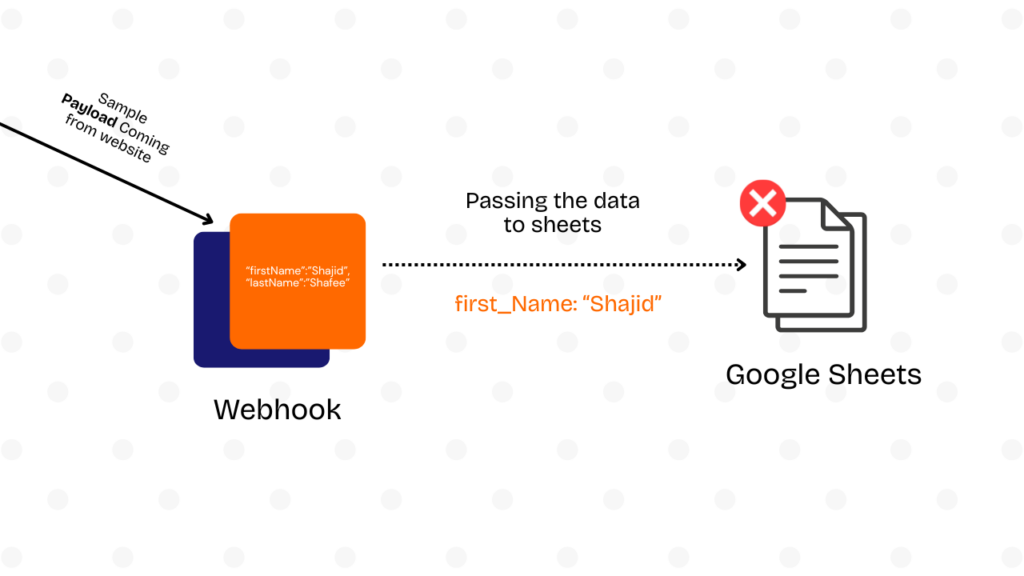
Grabbed data from a webhook, tried to send it to Google Sheets. Workflow ran perfectly in testing. Once deployed it immediately threw error.
The problem? The webhook sometimes sent firstName and sometimes first_Name. Sometimes the email field was nested under body.contact.email, other times just email. My rigid workflow couldn’t handle the variations.
That’s when I discovered aha there is expressions. Not just {{ }} syntax everyone mentions, but the actual pattern for handling messy, real-world data. The difference between workflows that run once during testing versus workflows that survive actual production use.
This guide shows you the expressions I wish I’d learned on day one or two. Not theoretical syntax, but copy-paste patterns you’ll actually use when webhooks send inconsistent data, APIs return nested objects, and you need to transform 500 items without crashing.
What are n8n Expressions? (And, Why They Are Important)
Here’s the simplest way to think about expressions.
They turn static workflow parameters into dynamic ones that adapt to your actual data.
Without expressions, every value in your workflow is hardcoded.
Want to send an email? You’d type “[email protected]” directly into recipient field. That works exactly once, for exactly one person.
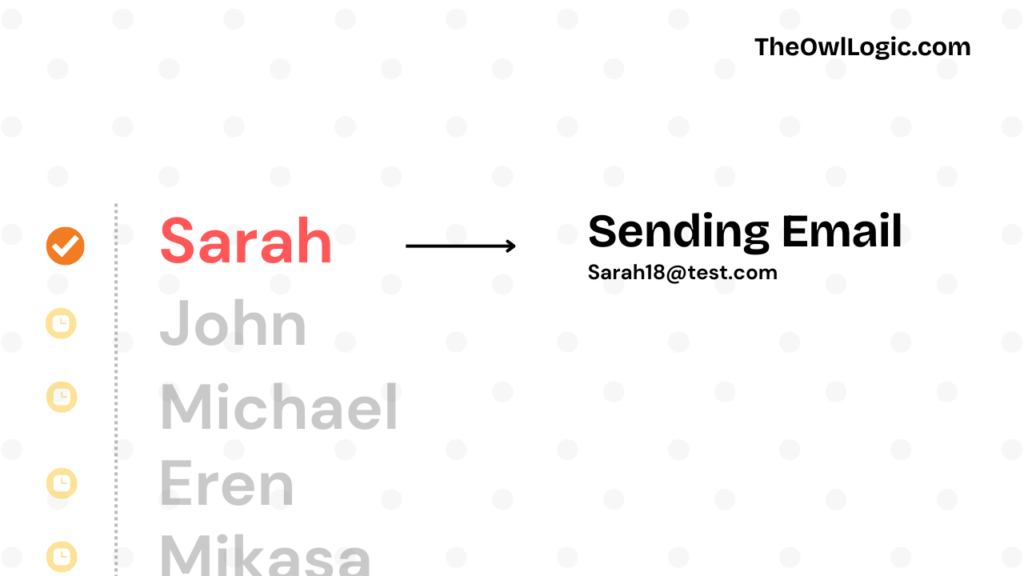
With expressions, you tell n8n “grab the email from the data that just came in” Same workflow now handles John, Sarah, and 10,000 other people without changing a single thing. Well, you got me there, but you can ask? Shajid, we can directly map the key, then whatever the John, Sarah, Michael could come in automatically? That’s correct. but We are going beyond just mapping by drag and drop values. Keep reading.
Under the hood, n8n uses Tournament, a templating language it developed specifically for workflow automation.
Tournament provides the {{ }} syntax and handles JavaScript execution. n8n extends Tournament with custom variables ($json, $node, $input), transformation functions, and built-in libraries like Luxon for dates and JMESPath for JSON querying.
The syntax is just double curly braces wrapping JavaScript code
{{ $json.email }}
That’s it. Everything inside {{ }} executes as JavaScript and gets replaced with the result. Static becomes dynamic.
You’ll use expressions constantly because real workflows process dynamic data. Form submission from different people. API responses that change. Customer names, order amounts, timestamps, Any time data flows through your workflow, you need expressions to access it, transform it, and pass it along like baton.
If you’re completely new to n8n, check out Your First Hello-World n8n Workflow to get your bearings first. Once you can build a basic workflow, expression are your next step.
Expression Syntax Fundamentals (The {{ }} The Wrapper)
The rule is simple.
If you want n8n to evaluate code instead of treating it as plain text, wrap it in {{ }}.
Click any parameter field in n8n and you’ll see a toggle between Fixes and Expression modes.
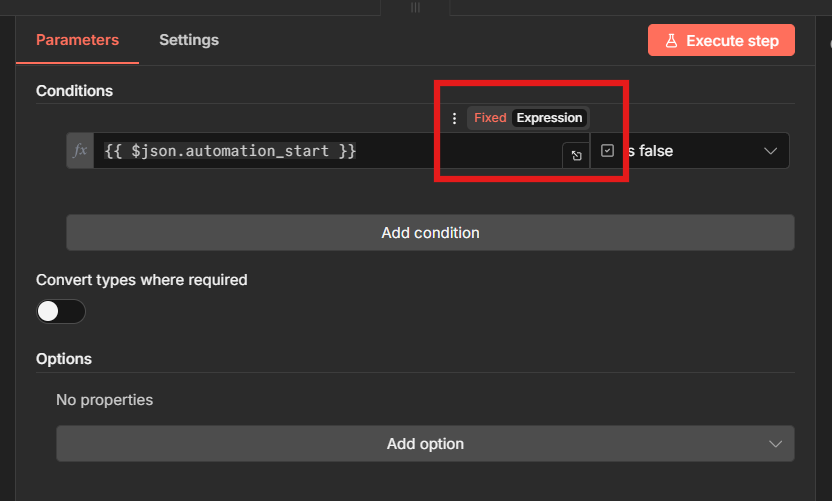
Fixed mode is for static values.
Expression mode is where the magic happens.
Inside those curly braces, you’re writing JavaScript. n8n executes it and replaces the expression with whatever it returns.
Common beginner mistake is forgetting the wrapper entirely.
👎🏼 Wrong: $json.name 👍🏼 Right: {{ $json.name }}
👎🏼 Wrong: {$json.email} 👍🏼 Right: {{ $json.email }}
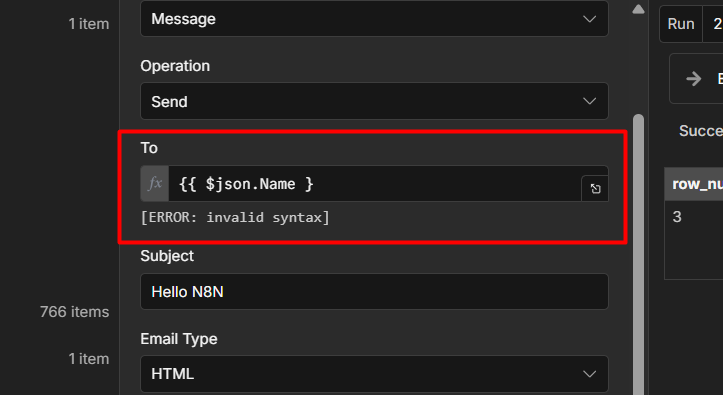
If you see an “expression not recognized” error, you either forgot the {{ }} or you’re still in Fixed mode. Toggle to Expression mode first, then make sure your code is wrapped properly
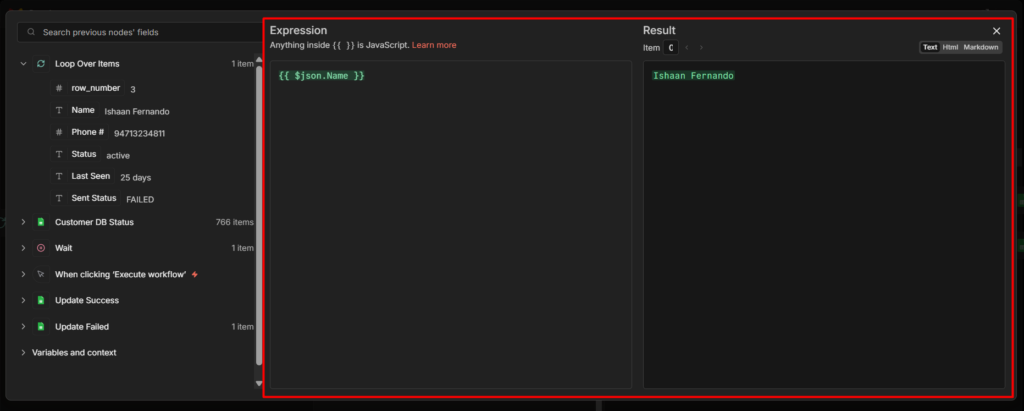
The expression editor (click the little expansion icon) gives you syntax highlighting and autocomplete. Use it when you’re writing anything longer than a simple field access. Inline mode works fine for {{ $json.email }} but for complex transformation, the editor saves you from syntax errors, and confusion.
Accessing Data: Your First Expression ($json Explained)
Every node in n8n receives data from the previous node. That data lives in $json. Think of it as “the current item I’m working with”
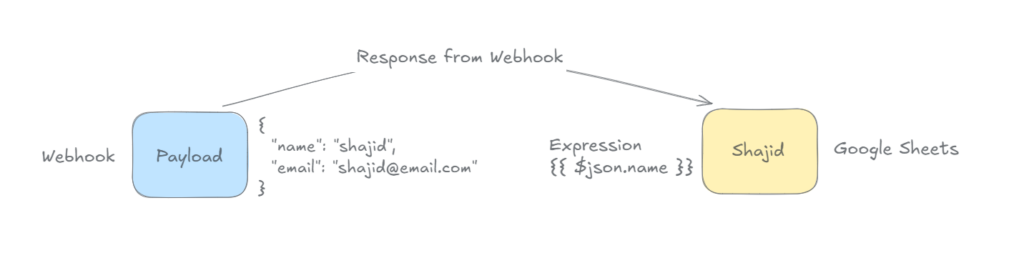
When a webhook fires, form data comes in. That data is now $json. When an HTTP request returns a response, that response is $json. When you read a row from Google Sheets, that row is $json.
// Input data:
{
  "name": "Shajid",
  "email": "[email protected]"
}

// Expression:
{{ $json.name }}
// Output: Shajid

{{ $json.email }}
// Output: [email protected]
Nested objects work exactly how you’d expect
// Webhook input:
{
  "body": {
    "user": {
      "first_name": "John",
      "last_name": "Doe"
    }
  }
}

// Expression:
{{ $json.body.user.first_name }}
// Output: John
The tricky part? Field names with spaces or special characters. Dot notation breaks. Use bracket notation instead.
// Data:
{
  "Full Name": "Jane Smith",
  "user-id": "12345"
}

// Wrong:
{{ $json.Full Name }}  // Breaks

// Right:
{{ $json["Full Name"] }}
{{ $json["user-id"] }}
Here’s where beginners hit their first real problem. Webhooks are the most common way to start n8n workflows, and webhook data always comes nested under body. You’ll see this structure constantly.
{
  "body": {
    "email": "[email protected]",
    "name": "Sarah"
  }
}
The mistake? Trying {{ $json.email }}. That field doesn’t exist at the root level. You need {{ $json.body.email }}.
When your webhook expressions return undefined, check the actual data structure first. Click the node, look at the output tab, see where your fields actually live. Then write your expression to match that structure.
Check it out here: Webhook in n8n for Beginners
When to Use Expressions vs Code Node?
Ask yourself one question, Can I write this transformation in a single line of JavaScript?
If yes, use an expression. If you need multiple lines, variables, or loops, reach for the code node.
Expressions excel at simple.
{{ $json.email }}  // Extract a value
{{ $json.name.toUpperCase() }}  // Transform it
{{ $json.price * 1.1 }}  // Calculate something
{{ $json.first_name + " " + $json.last_name }}  //Combine fields
These are one-line operations. Clean, readable, fast.
The Code node wins when your logic get complex
// This needs the Code node:
const activeItems = $input.all().filter(item => item.json.active);
const total = activeItems.reduce((sum, item) => sum + item.json.price, 0);
const average = total / activeItems.length;

return {
  json: {
    count: activeItems.length,
    total: total,
    average: average
  }
};
You need variables to store intermediate results. You’re looping through items. You’re building a new object from scratch. These are Code node tasks.
Performance-wise, expressions and Code nodes run at similar speed for small operations. The real difference is maintainability.
Expressions keep your workflow visual and easy to scan. Code nodes hide the logic inside a black box.
Use expressions when you can, Code when you must.
One more thing: Expressions execute per item. If you’re processing 100 items, an expression runs 100 times. The Code node can process all 100 items at once using $input.all(). For complex multi-item logic, Code node is often cleaner.
Check it out here: n8n Nodes, Workflow, and Data-flow
Essential n8n Variables You’ll Use Daily
Beyond $json, n8n gives you several built-in variables for different scenarios.
$input – Working with Multiple Items
Most expressions use $json, which represents the current single item. But workflows often process multiple items at once. That’s where $input comes in.
// Get all items from previous node
{{ $input.all() }}

// Get first item only
{{ $input.first().json.email }}

// Get last item
{{ $input.last().json.name }}

// Current item (usually same as $json)
{{ $input.item.json.id }}
When would you use this? Your workflow fetches 50 customer records from a database. You want to send one email that lists all 50 names. You can’t use $json.name here, that’s only the current item. You need $input.all() to access every item at once.
Another common pattern is you have multiple items but only care about the first one. Maybe you’re looking up a user by email and database returns a list. Use $input.first().json to grab that single record.
$node["Node Name"] Cross Node Data Access
Sometimes you need data from a node that’s not directly before the current one. Maybe you fetched user details in earlier HTTP request node, then did some processing, and now you need that original user data again.
// Reference data from a specific earlier node
{{ $node["HTTP Request"].json.userId }}

// Node names with spaces need brackets
{{ $node["Get User Data"].json.email }}
Note: node names are case-sensitive. {{ $node["http request"] }} won’t find a node named “HTTP Request”. Copy the exact name from your workflow.
“Referenced node is unexecuted” error means that node hasn’t run yet. Check your workflow path. If nodes run conditionally (through an IF node, for example), the referenced node might be on a path that didn’t execute.
$now – Timestamps and Dates
n8n includes Luxon for date handling, and $now gives you the current timestamp
// Current Unix timestamp
{{ $now }}

// Format as readable date
{{ $now.toFormat('yyyy-MM-dd') }}

// Calculate future dates
{{ $now.plus({ days: 7 }).toISO() }}

// Calculate past dates
{{ $now.minus({ months: 1 }).toFormat('yyyy-MM-dd') }}
This is useful for timestamping records, scheduling future actions, or filtering data by date ranges.
For understanding how these variable through your workflow and when nodes executes see n8n workflows, nodes and data-flow
String Manipulations Patterns (Copy-Paste Ready)
Here are the string operations I use constantly, organized by what you’re trying accomplish.
Making Text Uppercase or lowercase
{{ $json.name.toUpperCase() }}
// "john doe" becomes "JOHN DOE"

{{ $json.email.toLowerCase() }}
// "[email protected]" becomes "[email protected]"
Combining Text
// Using + operator
{{ $json.firstName + " " + $json.lastName }}
// "John" + " " + "Doe" = "John Doe"

// Building URLs
{{ "https://api.example.com/users/" + $json.userId }}

// Template literals (backticks) for cleaner syntax
{{ `Hello ${$json.name}, your order #${$json.orderId} is ready` }}
Template literals are cleaner when you’re mixing text and variables. The backtick syntax (`) lets you drop variables directly into strings without concatenation. They also support multi-line text:
// Multi-line email template
{{ `Hi ${$json.name},

Your order #${$json.orderId} is ready for pickup.
Total: $${$json.total}

Thanks for your business!` }}
The backtick approach is especially useful when building formatted messages, HTML content, or API payloads where readability matters.
Extracting parts of text
// First 10 characters
{{ $json.description.substring(0, 10) }}

// Everything after position 5
{{ $json.code.substring(5) }}

// Split on space, get first part
{{ $json.fullName.split(" ")[0] }}
// "John Doe" → "John"
Removing Whitespace
{{ $json.userInput.trim() }}
// "  hello  " becomes "hello"
This one saves you constantly when processing form submissions. Users add accidental spaces. Trim them before comparing or storing data.
Finding and replacing
// Replace first occurrence
{{ $json.text.replace("old", "new") }}

// Replace all occurrences
{{ $json.text.replaceAll(" ", "_") }}
// "hello world" becomes "hello_world"
Check if text contains something
{{ $json.email.includes("@gmail.com") }}
// Returns true or false
Use this in IF nodes to route data based on content. Gmail users go one path, everyone else goes another.
n8n Specific String Methods
n8n extends JavaScript with custom transformation methods that make common data cleaning tasks easier. These methods are unique to n8n and aren’t available in standard JavaScript.
| Method | Description | Example |
|---|---|---|
extractEmail() | Extract email from text | {{ "Contact: [email protected]".extractEmail() }} |
.extractDomain() | Extract domain from URL/email | {{ "https://example.com/path".extractDomain() }} |
.toTitleCase() | Convert to Title Case | {{ "hello world".toTitleCase() }} |
.toSentenceCase() | Capitalize first letter only | {{ "HELLO WORLD".toSentenceCase() }} |
.toSnakeCase() | Convert to snake_case | {{ "Hello World".toSnakeCase() }} |
.removeMarkdown() | Strip markdown formatting | {{ "**bold** text".removeMarkdown() }} |
.hash() | Generate SHA256 hash | {{ "password123".hash() }} |
.isEmpty() | Check if string is empty | {{ $json.field.isEmpty() }} |
.isNotEmpty() | Check if string has content | {{ $json.field.isNotEmpty() }} |
These methods are particularly useful for cleaning user input from forms:
// Extract email from messy contact field
{{ $json.body.contact.extractEmail() }}
// "Please contact me at [email protected] or call" → "[email protected]"

// Standardize company names
{{ $json.company.toTitleCase() }}
// "ACME CORP" → "Acme Corp"

// Create URL-friendly slugs
{{ $json.title.toSnakeCase() }}
// "My Blog Post Title" → "my_blog_post_title"
String Transformation Quick Reference
| Operation | Method | Example | Result |
|---|---|---|---|
| Uppercase | .toUpperCase() | {{ "hello".toUpperCase() }} | HELLO |
| Lowercase | .toLowerCase() | {{ "HELLO".toLowerCase() }} | hello |
| Trim spaces | .trim() | {{ " text ".trim() }} | text |
| Replace text | .replace(old, new) | {{ "hello".replace("h", "j") }} | jello |
| Replace all | .replaceAll(old, new) | {{ "a b a".replaceAll("a", "x") }} | x b x |
| Check contains | .includes(text) | {{ "hello".includes("ell") }} | true |
| Get length | .length | {{ "hello".length }} | 5 |
| Substring | .substring(start, end) | {{ "hello".substring(0, 3) }} | hel |
| Split to array | .split(separator) | {{ "a,b,c".split(",") }} | ["a","b","c"] |
Array Operations (Working With Lists)
Arrays are everywhere in n8n. API responses return lists of items. Webhooks send arrays of selections. You’ll need these operations constantly.
Getting array length
{{ $json.items.length }}
// Returns number of items in the array
Accessing specific items
{{ $json.users[0].name }}

// Last item
{{ $json.products[$json.products.length - 1].id }}
Joining array items into text
{{ $json.tags.join(", ") }}
// ["automation", "n8n", "workflow"] becomes "automation, n8n, workflow"
This is perfect for displaying comma-separated lists in emails or notifications.
Filtering arrays
// Get only active items
{{ $json.users.filter(u => u.active) }}

// Get items over a threshold
{{ $json.products.filter(p => p.price > 50) }}
Filter returns a new array containing only items that match your condition. The u => u.active syntax is an arrow function – u represents each item as you loop through.
Mapping arrays
// Extract just the names
{{ $json.users.map(u => u.name) }}
// [{name: "John", age: 30}, {name: "Sarah", age: 25}]
// becomes ["John", "Sarah"]

// Extract emails and join
{{ $json.contacts.map(c => c.email).join(", ") }}
Map transforms each item in an array. You’re taking a complex object and pulling out just one field from each.
Chaining operations
// Get active users' emails as comma-separated string
{{ $json.users
  .filter(u => u.active)
  .map(u => u.email)
  .join(", ")
}}
This is where arrays get powerful. Filter first to narrow down items, map to extract the field you need, join to create readable output. Three operations, one expression.
Checking if array includes something
{{ $json.tags.includes("urgent") }}
// Returns true if "urgent" is in the array
Here’s a real-world example that combines several of these, and this comes in handy.
// Webhook receives form with checkboxes
{
  "body": {
    "interests": ["automation", "productivity", "ai"],
    "name": "John"
  }
}

// Create readable text from interests
{{ "User " + $json.body.name + " is interested in: " + $json.body.interests.join(", ") }}

// Output: "User John is interested in: automation, productivity, ai"| Operation | Method | Example | Result |
|---|---|---|---|
| Get length | .length | {{ [1,2,3].length }} | 3 |
| Access item | [index] | {{ ["a","b","c"][1] }} | b |
| Join to string | .join(separator) | {{ ["a","b"].join(", ") }} | a, b |
| Filter items | .filter(condition) | {{ [1,2,3].filter(n => n > 1) }} | 2 |
| Transform items | .map(transform) | {{ [1,2,3].map(n => n * 2) }} | [2,4,6] |
| Check includes | .includes(value) | {{ ["a","b"].includes("a") }} | true |
| Find first match | .find(condition) | {{ [1,2,3].find(n => n > 1) }} | 2 |
| Get subset | .slice(start, end) | {{ [1,2,3,4].slice(1, 3) }} | [2,3] |
Advanced JSON Querying with JMESPath
When you’re working with deeply nested JSON or need to query complex data structures, dot notation can get messy fast. JMESPath is n8n’s built-in solution for powerful JSON querying without reaching for the Code node.
JMESPath (JSON Matching Expression paths) lets you extract, filter, and transform JSON data using a query language specifically designed for this purpose. n8n includes it by default.
// Extract all order totals from array of orders
{{ $jmespath($json, "orders[*].total") }}

// Input:
{
  "orders": [
    {"id": 1, "total": 99.99},
    {"id": 2, "total": 149.50}
  ]
}
// Output: [99.99, 149.50]
The [*] syntax means “all items in this array.” Much cleaner than looping with map.
Filtering arrays
// Get only active users
{{ $jmespath($json, "users[?active==`true`]") }}

// Get products over $50
{{ $jmespath($json, "products[?price > `50`]") }}

// Get orders from specific customer
{{ $jmespath($json, "orders[?customerId==`12345`]") }}
The [?condition] syntax filters arrays. Note the backticks around values – JMESPath requires them for literals.
Extracting and reshaping data
// Extract specific fields from each item
{{ $jmespath($json, "users[*].{name: fullName, email: emailAddress}") }}

// Input:
{
  "users": [
    {"fullName": "John Doe", "emailAddress": "[email protected]", "age": 30},
    {"fullName": "Jane Smith", "emailAddress": "[email protected]", "age": 25}
  ]
}
// Output:
[
  {"name": "John Doe", "email": "[email protected]"},
  {"name": "Jane Smith", "email": "[email protected]"}
]
This is powerful for cleaning up API responses before sending them to another service. Extract only what you need and rename fields in one expression.
When to use JMESPath vs dot notation
Use dot notation for simple field access:
{{ $json.user.email }} // Simple, clearUse JMESPath when you need to,
- Query arrays without explicit looping
- Filter data based on conditions
- Extract and reshape nested structures
- Avoid writing complex Code node logic
Real world example – processing Stripe webhook
// Stripe sends nested invoice data
// Extract all line item descriptions where amount > $100

{{ $jmespath($json.body.invoice, "lines.data[?amount > `10000`].description") }}

// Gets descriptions of all line items over $100 (Stripe uses cents)
JMESPath won’t replace all your array operations, but for complex queries on nested data, it’s significantly cleaner than chaining multiple maps and filters.
Working with Objects
Objects are everywhere in n8n – API responses, database records, form data all come in as JavaScript objects. Beyond basic field access, you’ll need these operations for combining data, checking properties, and transforming structures.
Accessing objects properties dynamically
Sometimes you don’t know the exact field name ahead of time. Maybe it’s based on user selection or comes from another node.
// Static access (you know the field name)
{{ $json.user.name }}

// Dynamic access (field name comes from data)
{{ $json.user[$json.selectedField] }}

// If selectedField = "email", this accesses $json.user.email
Iterating over object properties
// Get all property names (keys)
{{ Object.keys($json.settings) }}
// {theme: "dark", lang: "en"} → ["theme", "lang"]

// Get all values
{{ Object.values($json.settings) }}
// {theme: "dark", lang: "en"} → ["dark", "en"]

// Get key-value pairs
{{ Object.entries($json.settings) }}
// {theme: "dark", lang: "en"} → [["theme", "dark"], ["lang", "en"]]
Object.entries() is particularly useful when you need to loop through properties in a Code node or build custom output.
Merging Objects
// Combine two objects using spread operator
{{ { ...$json.user, ...$json.preferences } }}

// Input:
// $json.user = {name: "John", email: "[email protected]"}
// $json.preferences = {theme: "dark", lang: "en"}
// Output: {name: "John", email: "[email protected]", theme: "dark", lang: "en"}
Spread syntax (...) is cleaner than manually copying properties. Later properties override earlier ones if there are duplicate keys.
Checking if properties exist
// Check if property exists
{{ "email" in $json.user }}
// Returns true if user object has email property

// Check using hasOwnProperty (more precise)
{{ $json.user.hasOwnProperty("email") }}
The in operator checks the entire prototype chain. hasOwnProperty() only checks the object itself. For workflow data, they usually give the same result.
Practical example – combining data from multiple nodes:
// Merge user details from database with form submission
{{
  {
    ...($node["Database Query"].json),
    ...($json.body),
    updatedAt: $now.toISO()
  }
}}

// Database returns: {userId: "123", status: "active"}
// Form sends: {body: {email: "[email protected]", phone: "555-1234"}}
// Result: {userId: "123", status: "active", email: "[email protected]", phone: "555-1234", updatedAt: "2026-01-18T..."}
This pattern is common when updating records – grab existing data, merge new data, add a timestamp.
Numbers and Math Operations
Number operations are straightforward. Just remember that JavaScript follows standard math precedence (multiplication before addition, etc.).
```javascript
// Addition
{{ $json.price + $json.tax }}

// Subtraction
{{ $json.total - $json.discount }}

// Multiplication
{{ $json.quantity * $json.unitPrice }}

// Division
{{ $json.total / $json.itemCount }}
Rounding numbers
// Round to 2 decimal places
{{ ($json.price * 1.1).toFixed(2) }}
// 99.99 * 1.1 = 109.989 → "109.99"

// Round to nearest integer
{{ Math.round($json.value) }}
// 4.7 → 5, 4.3 → 4

// Always round up
{{ Math.ceil($json.value) }}
// 4.1 → 5

// Always round down
{{ Math.floor($json.value) }}
// 4.9 → 4
The toFixed() method is crucial for dealing with money. JavaScript’s floating point math creates weird results like 0.1 + 0.2 = 0.30000000000000004. Use toFixed(2) to clean that up.
Comparisons
{{ $json.stock > 0 }}  // true if stock is positive
{{ $json.price >= 100 }}  // true if price is 100 or more
{{ $json.quantity === 0 }}  // true if quantity is exactly 0
These return true or false, perfect for IF nodes.
Number Operations Quick Reference
| Operation | Method | Example | Result |
|---|---|---|---|
| Add | + | {{ 10 + 5 }} | 15 |
| Substract | - | {{ 10 - 5 }} | 5 |
| Multiply | * | {{ 10 * 5 }} | 50 |
| Divide | / | {{ 10 / 5 }} | 2 |
| Round to decimals | .toFixed(n) | {{ (10.567).toFixed(2) }} | “10.57” |
| Round to integer | Math.round() | {{ Math.round(10.5) }} | 11 |
| Round up | Math.ceil() | {{ Math.ceil(10.1) }} | 11 |
| Round down | Math.floor() | {{ Math.floor(10.9) }} | 10 |
| Absolute value | Math.abs() | {{ Math.abs(-10) }} | 10 |
| Maximum | Math.max() | {{ Math.max(10, 20, 5) }} | 20 |
| Minimum | Math.min() | {{ Math.min(10, 20, 5) }} | 5 |
Working with Dates and Time (Luxon Basics)
n8n includes Luxon for date handling. You don’t need to import anything – it’s already available.
Getting current date/time
// ISO format (standard)
{{ $now.toISO() }}
// "2026-01-18T14:30:00.000Z"

// Custom formats
{{ $now.toFormat('yyyy-MM-dd') }}
// "2026-01-18"

{{ $now.toFormat('MM/dd/yyyy HH:mm') }}
// "01/18/2026 14:30"
Parsing date strings
// From ISO string
{{ DateTime.fromISO($json.createdAt) }}

// From custom format
{{ DateTime.fromFormat($json.date, 'MM/dd/yyyy') }}
The second parameter in fromFormat() tell Luxon what format the input is in. Match it exactly to your data.
Date calculations
// Add 7 days
{{ $now.plus({ days: 7 }).toISO() }}

// Subtract 1 month
{{ $now.minus({ months: 1 }).toFormat('yyyy-MM-dd') }}

// Calculate difference
{{ DateTime.fromISO($json.endDate)
    .diff(DateTime.fromISO($json.startDate), 'days')
    .days
}}
// Returns number of days between two dates| Operation | Method | Example | Result |
|---|---|---|---|
| Current time (ISO) | $now.toISO() | {{ $now.toISO() }} | 2026-01-18T14:30:00Z |
| Format date | .toFormat(pattern) | {{ $now.toFormat('yyyy-MM-dd') }} | 2026-01-18 |
| Parse ISO string | DateTime.fromISO() | {{ DateTime.fromISO("2026-01-18") }} | DateTime object |
| Parse custom format | DateTime.fromFormat() | {{ DateTime.fromFormat("01/18/2026", "MM/dd/yyyy") }} | DateTime object |
| Add time | .plus({unit: n}) | {{ $now.plus({days: 7}) }} | 7 days from now |
| Subtract time | .minus({unit: n}) | {{ $now.minus({months: 1}) }} | 1 month ago |
| Difference | .diff(other, unit) | {{ date1.diff(date2, 'days').days }} | Number of days |
Advanced Techniques: IIFE and Complex Logic
Most expressions are one-liners. But sometimes you need variables or multi-step logic. That’s where IIFE (Immediately Invoked Function Expression) comes in.
The syntax looks intimidating but it’s just wrapping your code in a function that executes immediately:
{{
  (() => {
    // Your code here with variables
    return result;
  })()
}}
The (() => { ... })() wrapper creates a function scope where you can use variables and multiple statements.
Practical example: Complex date calculation
{{
  (() => {
    const startDate = DateTime.fromISO($json.startDate);
    const endDate = DateTime.fromISO($json.endDate);
    const diff = endDate.diff(startDate, 'months').months;
    return Math.round(diff);
  })()
}}
This calculates the number of months between two dates and rounds the result. Too complex for a single line, but IIFE makes it possible without switching to a Code node.
Simple conditional logic
// Ternary operator (basic if/else)
{{ $json.status === 'active' ? 'Active User' : 'Inactive' }}

// Multiple conditions
{{ $json.score >= 90 ? 'A' : $json.score >= 80 ? 'B' : 'C' }}
The ternary operator format is condition ? valueIfTrue : valueIfFalse. You can chain them, but it gets messy fast. For more than 2-3 conditions, use IIFE:
{{
  (() => {
    const score = $json.testScore;
    if (score >= 90) return 'Excellent';
    if (score >= 70) return 'Good';
    return 'Needs Improvement';
  })()
}}
When to stop and use Code node instead: If your IIFE exceeds 10 lines or needs loops, switch to Code node. Expressions should remain readable at a glance. Complex logic belongs in Code nodes where you have proper debugging and structure.
Common Expression Errors (And How to Fix Them)
| Error Message | Common Cause | Quick Fix |
|---|---|---|
| “Cannot read property of undefined” | Accessing missing/null field | Use optional chaining: {{ $json.field?.property }} |
| “Referenced node is unexecuted” | Node hasn’t run yet | Check workflow execution order |
| “Invalid syntax” | Typo, missing bracket, wrong mode | Use expression editor, check brackets balance |
| “Expression not recognized” | Missing {{ }} wrapper or Fixed mode | Toggle to Expression mode, add wrapper |
| Webhook data shows undefined | Not accounting for body nesting | Use {{ $json.body.field }} instead of {{ $json.field }} |
Error “Cannot read property of undefined”
What it means: You’re trying to access a field that doesn’t exist in your data.
Common causes
- The field name is misspelled (JavaScript is case-sensitive)
- The data structure is different than you expected
- Previous node returned empty results
- The field is optional and doesn’t always exist
Fix with optional chaining
// Before (breaks if email is missing):
{{ $json.user.email }}

// After (returns undefined instead of crashing):
{{ $json.user?.email }}

// With fallback value:
{{ $json.user?.email || '[email protected]' }}
The ?. operator stops execution if user doesn’t exist instead of throwing an error. The || operator provides a default value if the field is undefined or empty.
Error “Referenced node is unexecuted”
What it means: You’re trying to access data from a node that hasn’t run yet.
This happens when you reference $node["Node Name"] but that node is on a workflow path that didn’t execute. Maybe it’s after an IF node and went down the other branch. Maybe it’s disabled.
Fix: Restructure your workflow so the node you’re referencing always executes before you try to access its data. Or handle the missing data with optional chaining.
See n8n workflows, nodes and data-flow for understanding execution order.
Error “Invalid Syntax”
What it means: JavaScript syntax error in your expression.
Common causes:
- Trailing period:
{{ $json.field. }} - Missing closing bracket:
{{ $json.items.map(i => i.name }} - Wrong quote type (mixing single and double quotes incorrectly)
- Missing
{{ }}wrapper entirely
Fix: Use the expression editor’s syntax highlighting. Check that all brackets are balanced. Make sure you’re in Expression mode, not Fixed mode.
Error “Webhook data showing as undefined”
What it means: You’re not accounting for how webhook data is structured.
Webhooks nest data under body. If your expression is {{ $json.email }} but the actual structure is
{
  "body": {
    "email": "[email protected]"
  }
}
Then $json.email is undefined. You need $json.body.email.
Fix: Click the webhook node, look at the Output tab, see the actual structure. Write expressions that match that structure exactly.
For complete webhook data structure details, see Webhook in n8n For Beginners
Real World Workflow Examples (Building Blocks With n8n Expressions)
Scenario 1: Processing Contact Form Submissions
// Webhook receives:
{
  "body": {
    "firstName": "john",
    "lastName": "doe",
    "email": "[email protected]",
    "message": "  Need help with automation  "
  }
}

// Clean and format for CRM:

// Full name (capitalize first letter of each)
{{ $json.body.firstName.charAt(0).toUpperCase() + $json.body.firstName.slice(1) + " " + $json.body.lastName.charAt(0).toUpperCase() + $json.body.lastName.slice(1) }}
// "john doe" → "John Doe"

// Or use n8n's custom method (cleaner):
{{ ($json.body.firstName + " " + $json.body.lastName).toTitleCase() }}

// Email (lowercase, no spaces)
{{ $json.body.email.toLowerCase().trim() }}
// "[email protected]" → "[email protected]"

// Message (remove extra whitespace)
{{ $json.body.message.trim() }}
// "  Need help with automation  " → "Need help with automation"
Scenario 2: E-Commerce Order Processing
// Calculate order total with tax
{{ ($json.subtotal * 1.08).toFixed(2) }}

// Tag high-value orders
{{ $json.subtotal >= 1000 ? 'VIP' : 'Standard' }}

// Format order date for display
{{ DateTime.fromISO($json.orderDate).toFormat('MMM dd, yyyy') }}
// "2026-01-18T00:00:00.000Z" → "Jan 18, 2026"

// Create order summary using template literal
{{ `Order #${$json.orderId} - ${$json.items.length} items - Total: $${$json.total}` }}
// "Order #12345 - 3 items - Total: $156.99"
Scenario 3: Multi Node Data Combination
// Combine user data from earlier node with current order
{{ $node["Get User"].json.name + " ordered " + $json.productName }}
// "Sarah ordered Premium Plan"

// Mix webhook data with database lookup
{{ $json.body.email + " (Customer ID: " + $node["Database Query"].json.customerId + ")" }}
// "[email protected] (Customer ID: C-001)"
```

These scenarios mirror actual automation workflows. You can adapt these patterns directly to your use cases.

## Quick Reference Cheat Sheet

Keep these patterns handy for quick lookup.

**Data Access:**
```
Current node data: {{ $json.fieldName }}
Nested data: {{ $json.parent.child.field }}
Spaces in names: {{ $json["Field Name"] }}
Previous node: {{ $node["Node Name"].json.field }}
All items: {{ $input.all() }}
First item: {{ $input.first().json.field }}
```

**Common Transformations:**
```
Uppercase: {{ $json.text.toUpperCase() }}
Lowercase: {{ $json.text.toLowerCase() }}
Combine text: {{ $json.first + " " + $json.last }}
Template literal: {{ `${$json.first} ${$json.last}` }}
Array length: {{ $json.items.length }}
Join array: {{ $json.tags.join(", ") }}
Current date: {{ $now.toFormat('yyyy-MM-dd') }}
Round money: {{ ($json.price * 1.1).toFixed(2) }}
Extract email: {{ $json.text.extractEmail() }}
Title case: {{ $json.name.toTitleCase() }}
```

**Conditionals:**
```
Simple if/else: {{ $json.active ? 'Yes' : 'No' }}
Check exists: {{ $json.email?.includes("@") }}
Fallback value: {{ $json.name || 'Unknown' }}
```

**Advanced:**
```
JMESPath query: {{ $jmespath($json, "users[*].email") }}
JMESPath filter: {{ $jmespath($json, "items[?price > `50`]") }}
Object keys: {{ Object.keys($json.settings) }}
Merge objects: {{ { ...$json.user, ...$json.prefs } }}
What’s Next? From Expression to Workflows
You now know how to access data $json, transform strings and arrays, handle dates, query JSON with JMESPath, work with objects, and fix common errors. That covers 90% of the expressions you’ll write.
The next level is knowing when to stop using expressions. If you’re writing 15-line IIFEs with nested loops, that logic belongs in a Code node. Expressions keep workflows readable. Code nodes handle complex transformations.
Practice with simple expressions first. Grab a field, make it uppercase, combine two fields. Build muscle memory. Then tackle transformations – filtering arrays, calculating totals, formatting dates. The syntax clicks after you’ve used it a few times.
Master data extraction before moving to transformations. Get comfortable accessing fields, then start manipulating them. That progression works better than trying to learn everything at once.
When you’re ready to build complete workflows with these expressions, start here
- n8n for complete beginners – Build your foundation